Bildschirmzeit-Limits & Sperren
Fami Hero bietet leistungsstarke Steuerelemente, um die Gerätenutzung auszugleichen, Geräte sofort zu sperren und gesunde digitale Gewohnheiten zu entwickeln. Diese Anleitung beschreibt, wie Sie Nutzungsdiagramme in Echtzeit einsehen, die Sofortige Sperre verwenden, tägliche Zeitlimits festlegen, geplante Sperrzeiten (Downtime) einrichten, spezifische App-Berechtigungen anpassen (Blockierte Apps und Immer erlaubt) und erklärt den Sperrbildschirm auf dem Gerät des Kindes.
⚡ 1. Sofortige Sperre (Instant Lock / Gerätesperre im Notfall)
Die Sofortige Sperre (Instant Lock) ist eine Notfallsteuerung, mit der Eltern das Gerät des Kindes sofort über das Eltern-Dashboard sperren können. Sie überschreibt alle aktiven täglichen Limits und Lịchtrình (Schedules), was ideal ist, wenn Sie die sofortige Aufmerksamkeit Ihres Kindes benötigen (z. B. beim Abendessen oder bei Familiengesprächen).
So funktioniert es:
- Öffnen Sie die Fami Hero Eltern-App und rufen Sie das Haupt-Dashboard des Profils Ihres Kindes auf.
- Suchen Sie die auffällige Instant Lock-Karte oben auf dem Dashboard.
- Stellen Sie den Schalter auf ON (aktiver blau/türkiser Zustand).
- Die Eltern-App sendet über WebSockets einen sofortigen Befehl an das Gerät des Kindes.
- Das Gerät des Kindes wird sofort gesperrt und zeigt einen Vollbild-Sperrbildschirm mit einem großen Schloss-Symbol und der Meldung "Device is Locked" an.
- Zum Entsperren schalten Sie den Schalter einfach im Dashboard auf OFF.
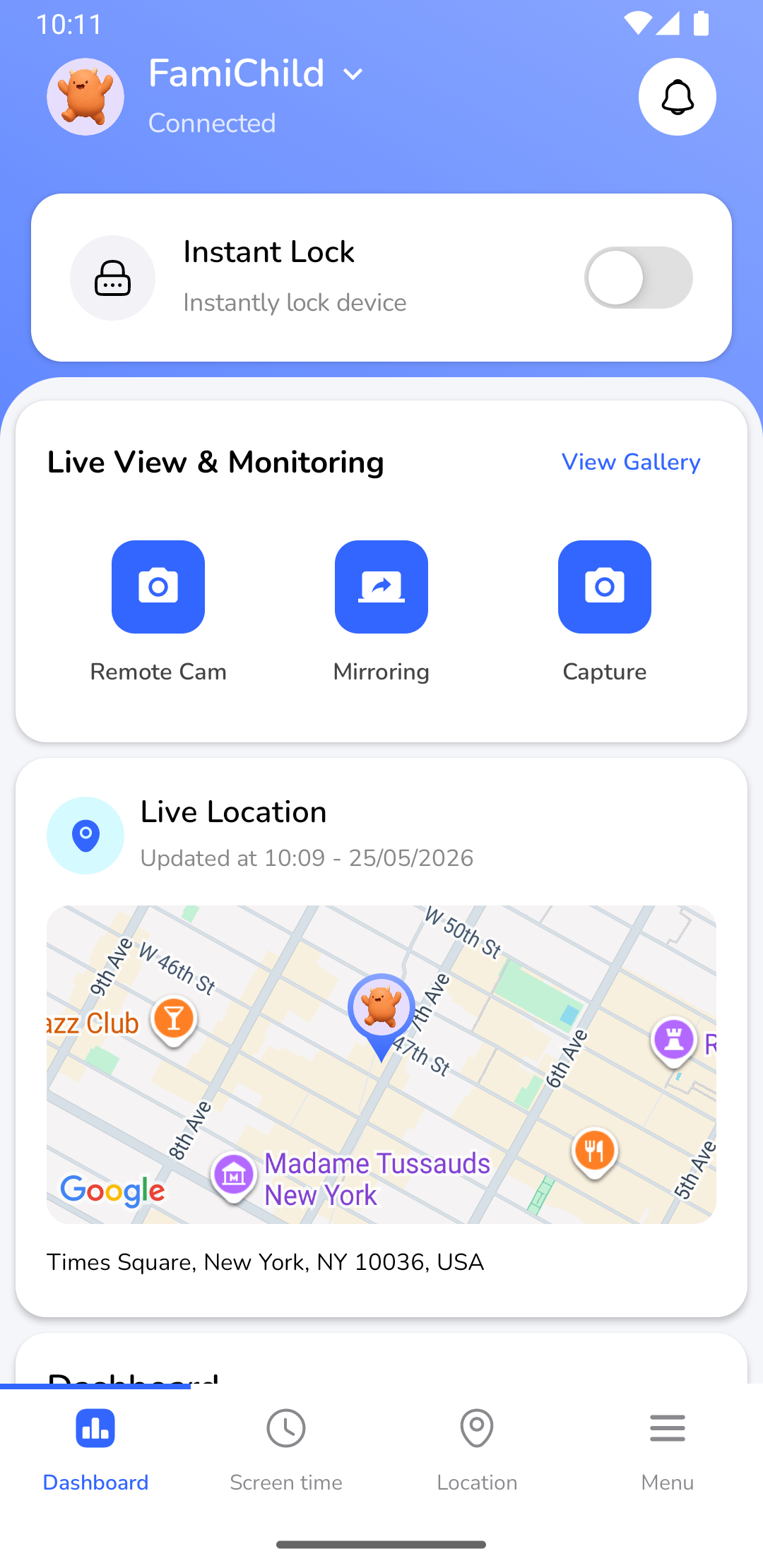
Bildunterschrift: Aktivierung des Sofortige Sperre-Schalters im Eltern-Dashboard, um den Gerätezugriff sofort einzuschränken.
📊 2. Nutzungsdiagramme & App-Aktivität
Eltern können die Bildschirmzeitaktivitäten ihres Kindes ganz einfach in Echtzeit direkt über das Eltern-Dashboard überwachen:
- Nutzungszeit-Diagramm: Der Tab Screen Time zeigt ein Balkendiagramm, das die durchschnittliche tägliche Nutzung der letzten 7 Tage darstellt und einen schnellen visuellen Überblick über Trends bietet.
- Alle Apps anzeigen (See All App): Tippen Sie direkt unter dem Diagramm auf den Link See All App, um eine detaillierte Aufschlüsselung der Nutzungszeiten einzelner Apps anzuzeigen. So erkennen Sie schnell, welche Apps die meiste Zeit in Anspruch nehmen.
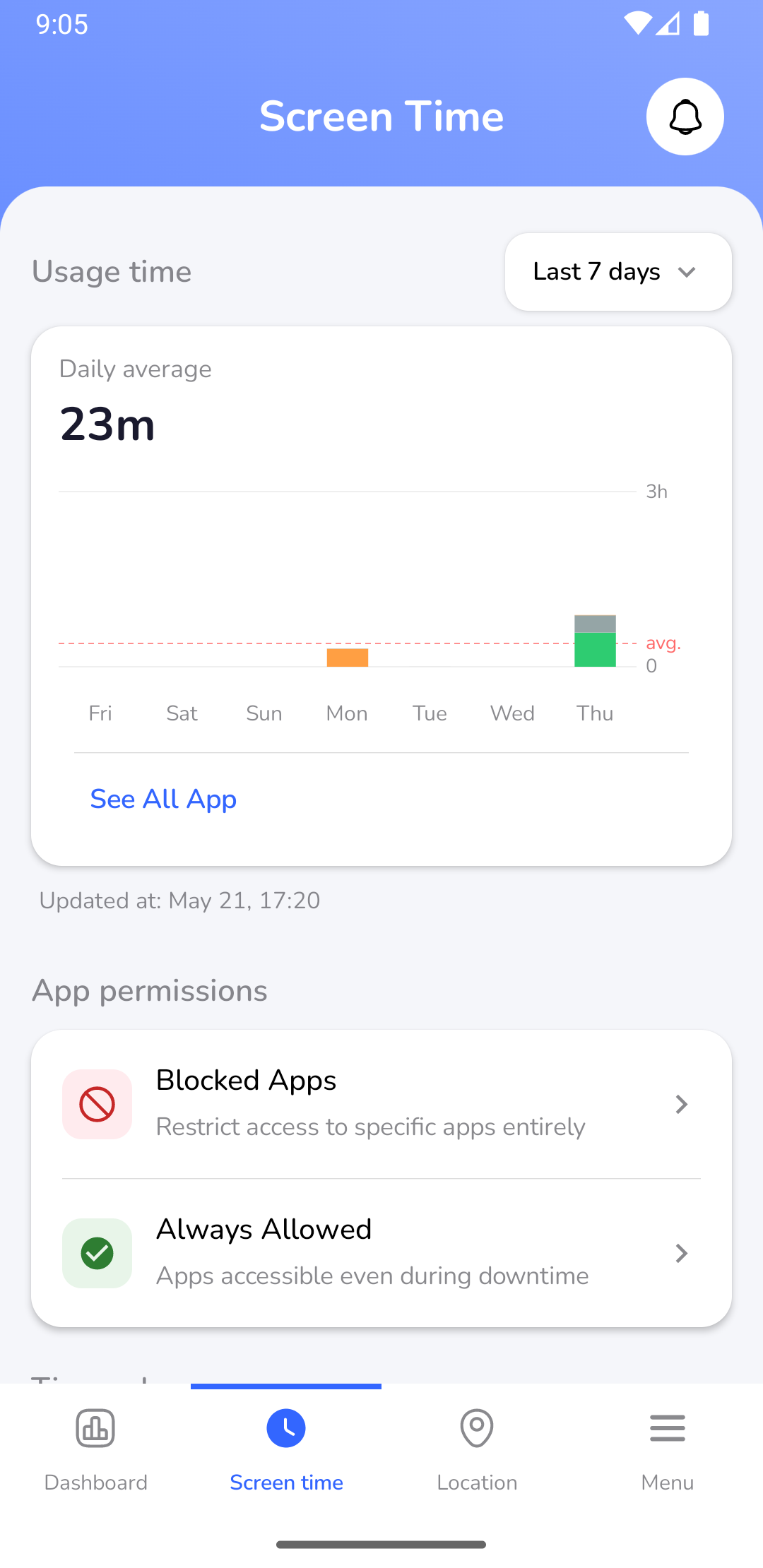
Bildunterschrift: Abrufen des 7-Tage-Nutzungsdiagramms und Tippen auf "See All App" für detaillierte Aktivitätsdaten.
⏱️ 3. Tägliche Bildschirmzeitlimits
Ein tägliches Zeitlimit legt die maximal zulässige aktive Nutzungszeit pro Tag für bestimmte Apps oder App-Kategorien fest. Sobald dieses Limit erreicht ist, schränkt das Gerät des Kindes den Zugriff auf diese Apps automatisch ein.
So konfigurieren Sie tägliche Limits:
- Wählen Sie das Profil Ihres Kindes aus und tippen Sie auf den Tab Screen Time.
- Scrollen Sie nach unten zum Bereich Time rules und tippen Sie auf Daily Time Limits.
- Schalten Sie den Regler App limits auf ON.
- Tippen Sie unten auf die Schaltfläche Add limit (oder tippen Sie auf ein bestehendes Limit wie
Chromeoder die GruppeSocial, um es zu ändern). - Wählen Sie die spezifischen Apps oder App-Kategorien aus, die Sie begrenzen möchten, legen Sie die Dauer fest (z. B.
2m,1h) und wählen Sie die Häufigkeit (z. B.Täglich). - Tippen Sie auf Save (Speichern), um die Limits sofort auf dem Gerät des Kindes anzuwenden.
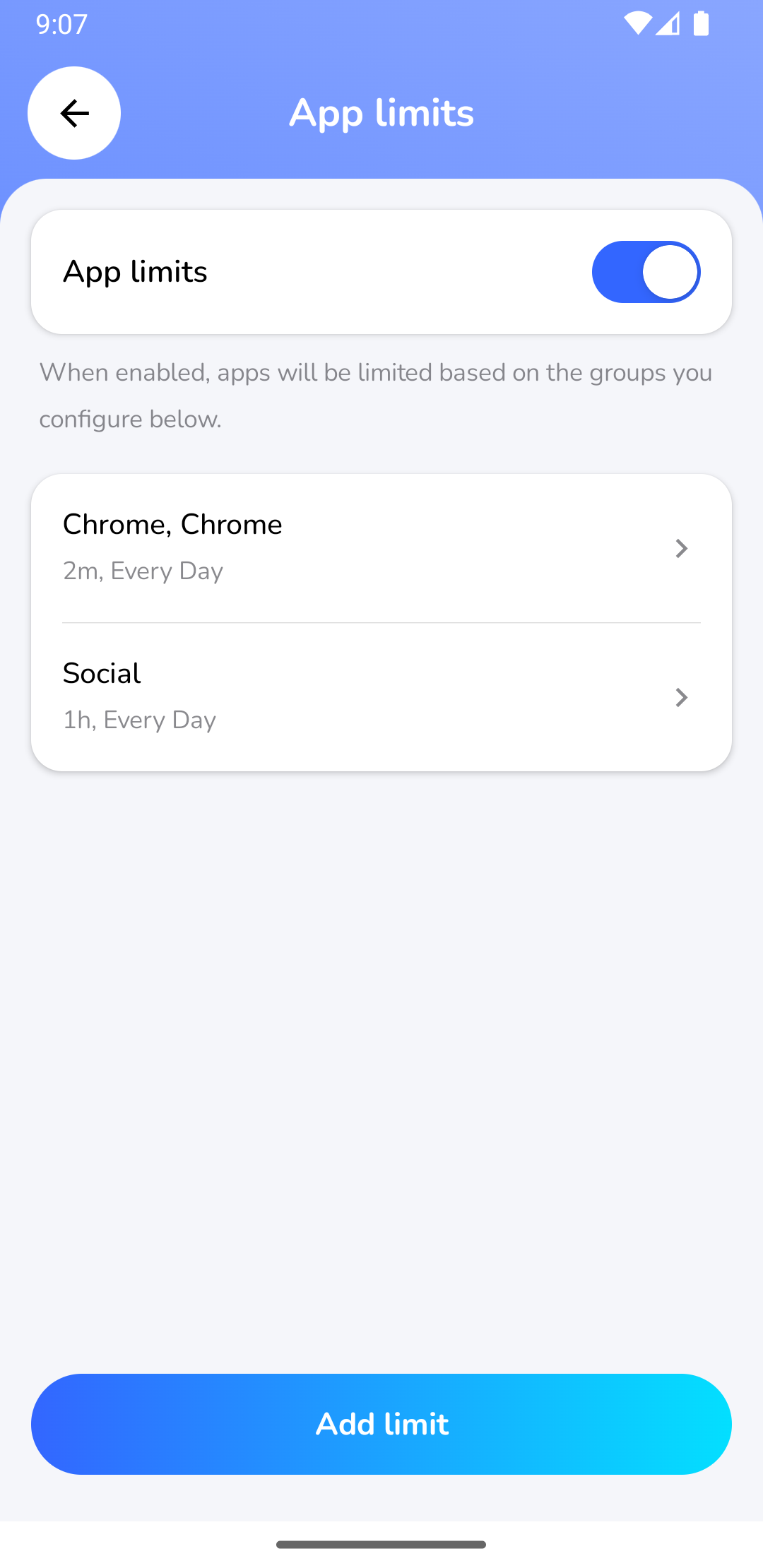
Bildunterschrift: Konfiguration der täglichen Zeitlimits für bestimmte App-Gruppen oder -Kategorien in der Eltern-App.
🛌 4. Geplante Sperrzeiten (Scheduled Downtime)
Die geplante Sperrzeit (Downtime) sperrt das Gerät während bestimmter Stunden (z. B. Schlafenszeit, Schulzeit oder Hausaufgabenzeit) vollständig, unabhängig davon, wie viel tägliche Bildschirmzeit noch übrig ist. Während der Downtime kann das Kind keine Apps öffnen, außer denjenigen, die in der Liste Immer erlaubt (Always Allowed) eingetragen sind.
So konfigurieren Sie Sperrzeiten:
- Navigieren Sie in der Eltern-App zum Tab Screen Time.
- Scrollen Sie zum Bereich Time rules und tippen Sie auf Scheduled Downtime.
- Schalten Sie den Regler Activate Downtime auf ON.
- Tippen Sie unten auf die Schaltfläche Add Downtime.
- Konfigurieren Sie die Parameter der Sperrzeit:
- Name: (z. B.
SchlafenszeitoderSchulstunden). - Startzeit (Start Time): (z. B.
9:00 PM). - Endzeit (End Time): (z. B.
6:00 AM). - Wiederholung (Repeat): Wählen Sie die Wochentage aus.
- Name: (z. B.
- Tippen Sie auf Save, um den Zeitplan anzuwenden.
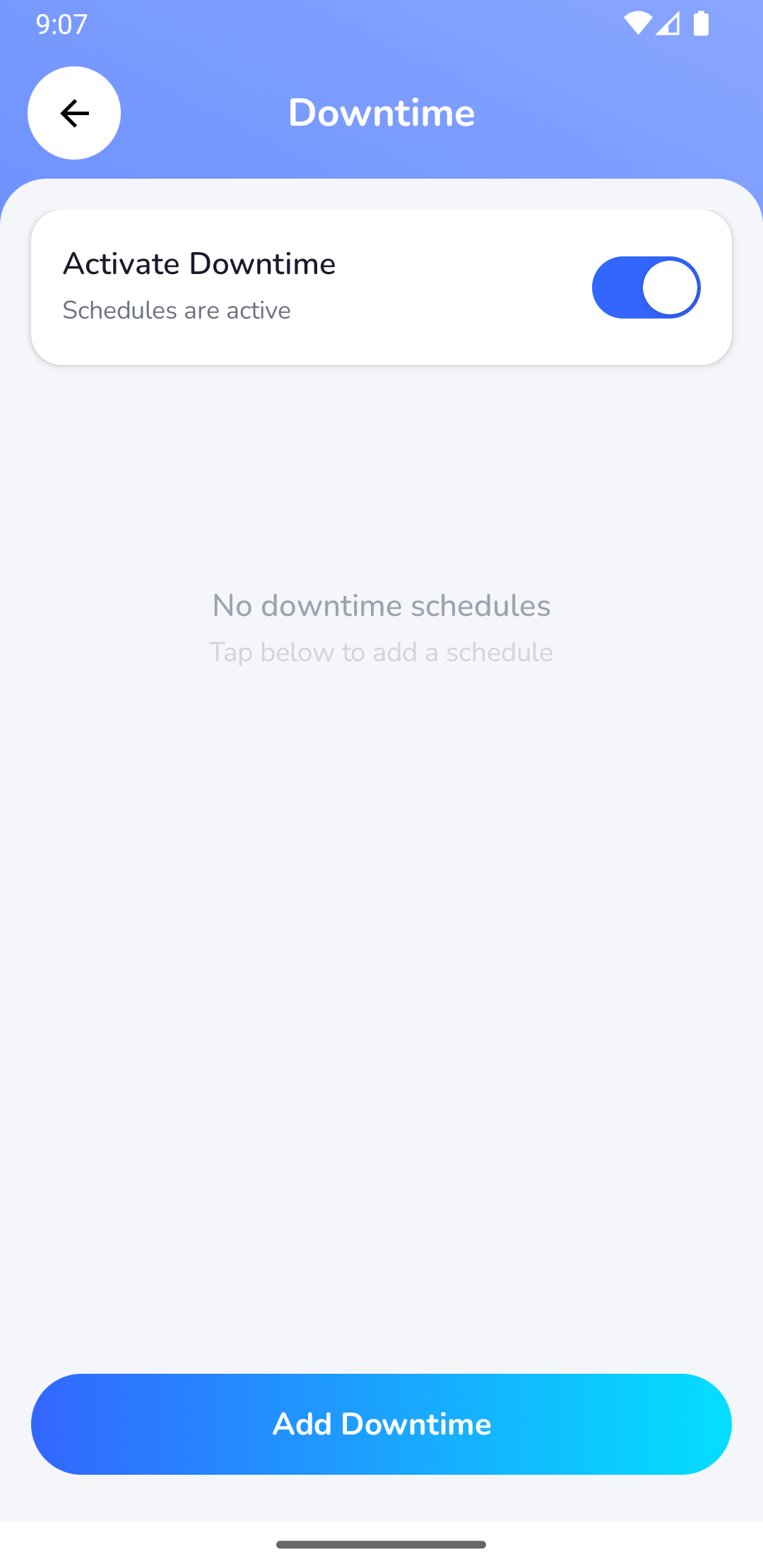
Bildunterschrift: Erstellung einer geplanten Sperrzeit (Downtime), um den Gerätezugriff während der Schlafens- oder Schulzeit einzuschränken.
🚫 5. Spezifische App-Regeln (Blockiert & Immer erlaubt)
Anstatt das gesamte Smartphone zu sperren, können Eltern die Berechtigungen für einzelne Apps anpassen. Dies ist ideal, um ablenkende Spiele und soziale Medien zu blockieren, während Lernwerkzeuge, Navigation und Notfallkommunikation zugänglich bleiben.
App-Berechtigungsstatus:
- Blockierte Apps (Blocked Apps): Diese Apps sind immer gesperrt. Diese Einstellung hat die höchste Priorität und überschreibt alle anderen Regeln, einschließlich erlaubter Apps. Das Öffnen einer blockierten App löst sofort den Vollbild-Sperrbildschirm "App blockiert" aus.
- Immer erlaubt (Always Allowed): Diese Apps sind immer verfügbar, auch während der geplanten Downtime oder wenn andere tägliche Limits überschritten wurden. Dies wird dringend für schulbezogene Apps oder Notfall-Apps wie Telefon, Karten und Taschenrechner empfohlen.
So konfigurieren Sie App-Regeln:
- Öffnen Sie das Profil des Kindes und tippen Sie auf den Tab Screen Time.
- Suchen Sie den Bereich App permissions.
- So konfigurieren Sie blockierte Apps:
- Tippen Sie auf Blocked Apps.
- Suchen Sie die App, die Sie einschränken möchten, in der Liste Choose Apps und tippen Sie auf das rote +-Symbol.
- Um eine App zu entsperren, tippen Sie auf das rote X-Symbol neben ihrem Namen in der Liste Blocked Apps.
- So konfigurieren Sie immer erlaubte Apps:
- Tippen Sie auf Always Allowed.
- Suchen Sie die App in der Liste Choose Apps und tippen Sie auf das blaue +-Symbol.
- Um eine App aus der Liste der immer erlaubten Apps zu entfernen, tippen Sie auf das rote X-Symbol neben ihrem Namen in der Liste Allowed Apps.
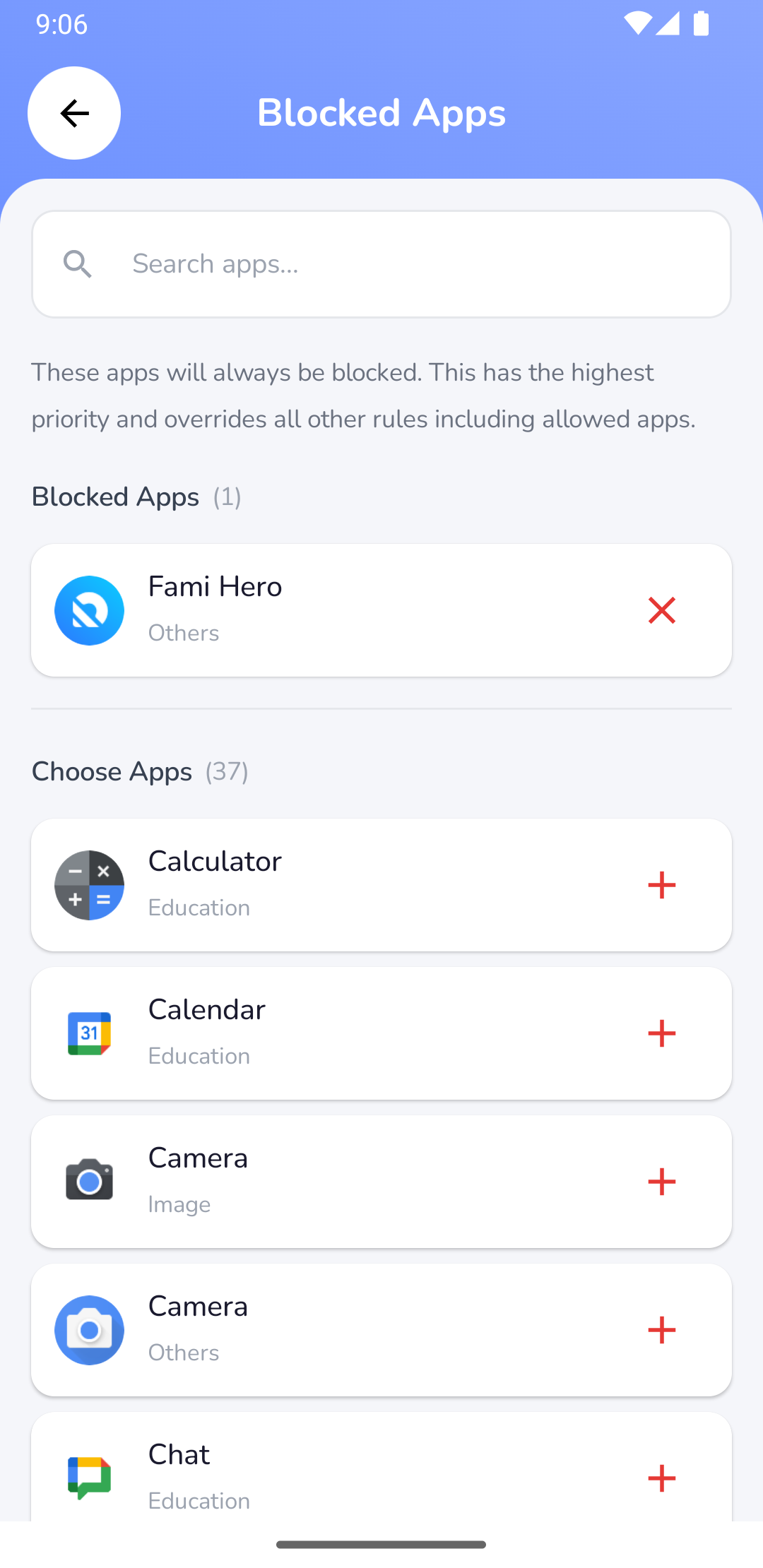
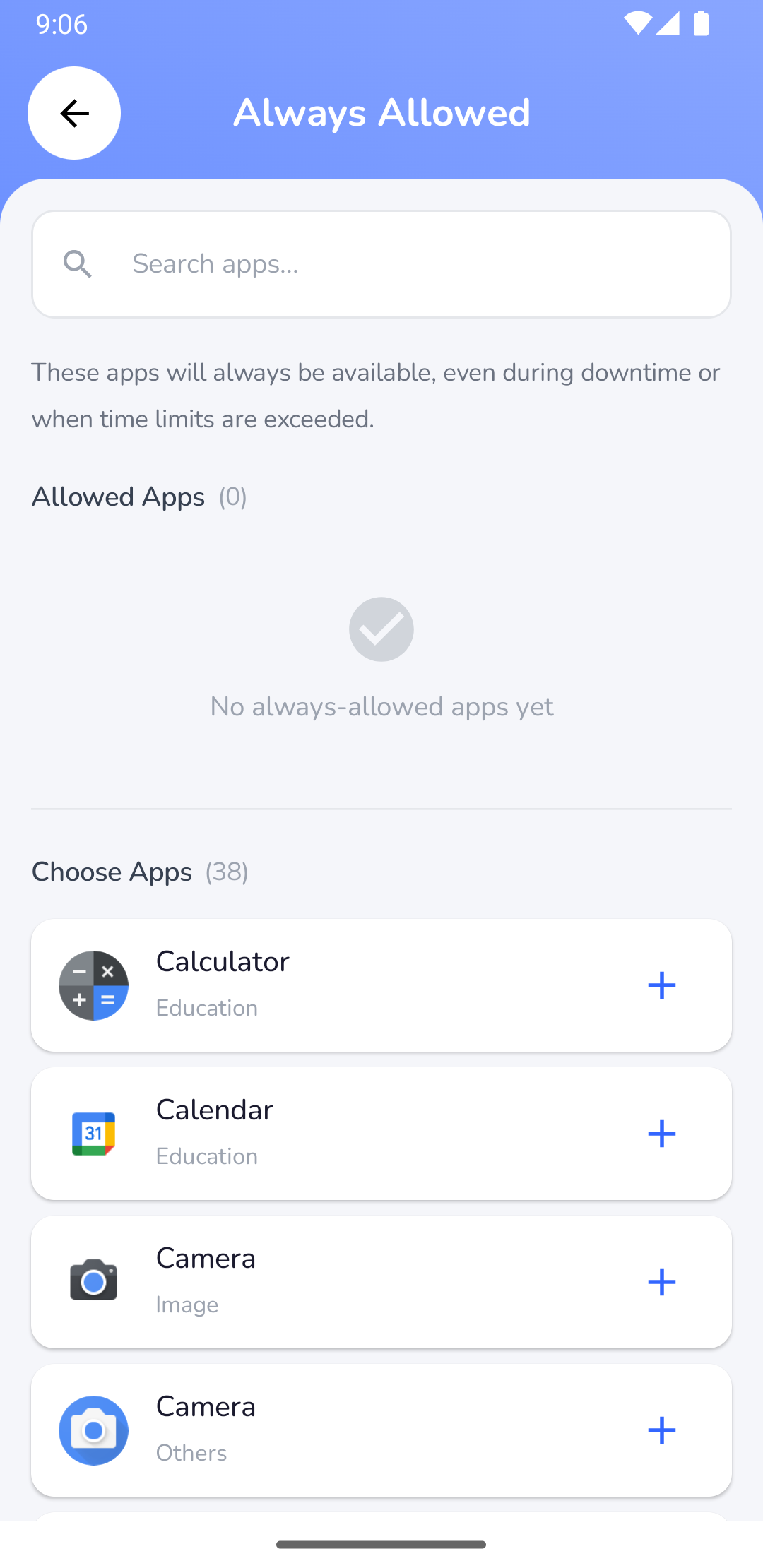
Bildunterschrift: Konfiguration spezifischer App-Regeln: Liste der blockierten Apps (links) und Liste der immer erlaubten Apps (rechts).
📲 Der Sperrbildschirm aus Sicht des Kindes
Wenn das tägliche Limit erreicht ist, eine Sperrzeit beginnt, die Sofortige Sperre aktiviert wird oder eine blockierte App gestartet wird, zeigt die App Fami Hero Kids sofort einen Vollbild-Sperrbildschirm über anderen Apps an.
[!NOTE] Dieser Sperrbildschirm erfordert die Berechtigung Über anderen Apps anzeigen (Display Over Other Apps), die bei der Einrichtung aktiviert wurde. Wenn diese Berechtigung aktiv ist, kann das Kind den Sperrbildschirm nicht minimieren, schließen oder über die Home- oder Letzte-Apps-Taste umgehen.
Der Sperrbildschirm zeigt:
- Eine klare Erklärung, warum das Gerät gesperrt ist (z. B. "Time Limit Reached", "Bedtime Curfew Active" oder "Device Locked by Parent").
- Die verbleibende Zeit, bis das Gerät wieder freigegeben wird (nur bei geplanter Sperrzeit / Downtime angezeigt).
- Eine Schaltfläche Zurück oder Okay, um zum Startbildschirm des Kindes zurückzukehren.
- Eine Schalfläche Mehr Zeit anfordern (nur verfügbar, wenn die täglichen App-Limits überschritten wurden).
Der Sperrbildschirm zeigt oben auch eine freundliche 3D-Maskottchen-Illustration.
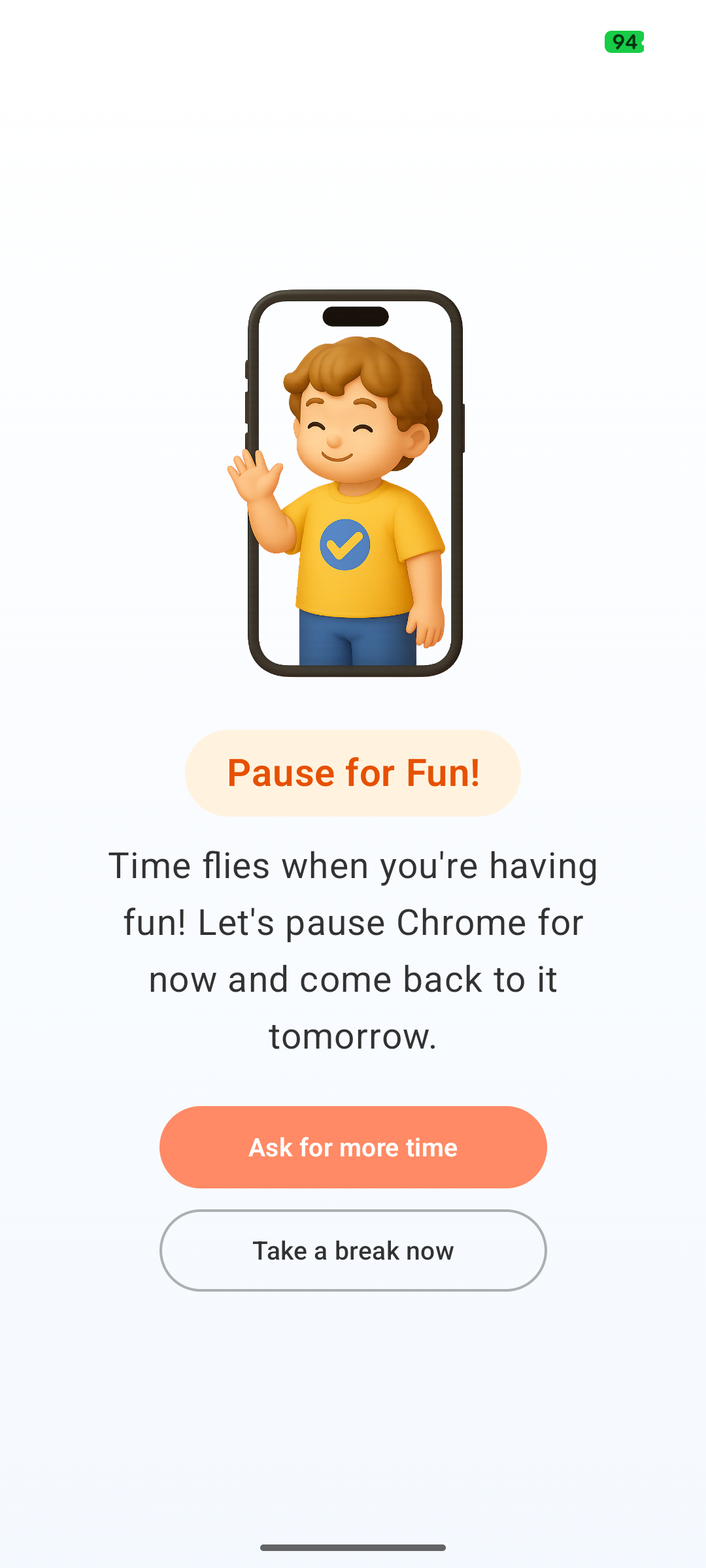
Bildunterschrift: Der Sperrbildschirm auf dem Gerät des Kindes, wenn eine blockierte App geöffnet wird, eine geplante Sperrzeit aktiv ist oder das tägliche Limit überschritten wurde.
⏭️ Nächster Schritt
Wenn Ihr Kind das Gerät über die aktiven Limits hinaus nutzen muss, kann es eine Anfrage senden. Lesen Sie weiter unter Zusatzzeitanfragen, um zu erfahren, wie dieser Prozess funktioniert.