Zusatzzeit anfordern
Wenn das tägliche Limit abgelaufen ist oder das Kind eine blockierte App öffnet, kann es direkt über den Sperrbildschirm zusätzliche Bildschirmzeit anfordern. Diese Anleitung beschreibt, wie das Kind die Anfrage sendet, wie die Eltern benachrichtigt werden und wie die Eltern diese Anfragen verwalten.
🔁 Der Anfrage- & Genehmigungsablauf
Das Anfordern von Zusatzzeit ist ein interaktiver Echtzeitprozess zwischen dem Gerät des Kindes und dem Smartphone der Eltern über den Fami Hero Server.
📲 Schritt 1: Kind sendet die Anfrage
Auf dem Sperrbildschirm des Kindergeräts:
- Das Kind tippt auf Zusatzzeit anfordern.
- Das Kind wählt die gewünschte Verlängerungsdauer (z. B.
15 Minuten,30 Minutenoder1 Stunde). - (Optional) Das Kind gibt eine kurze Begründung ein (z. B. "Hausaufgaben machen" oder "Film zu Ende schauen").
- Das Kind tippt auf Anfrage senden.
- Auf dem Bildschirm wird der Status Warten auf Genehmigung angezeigt.
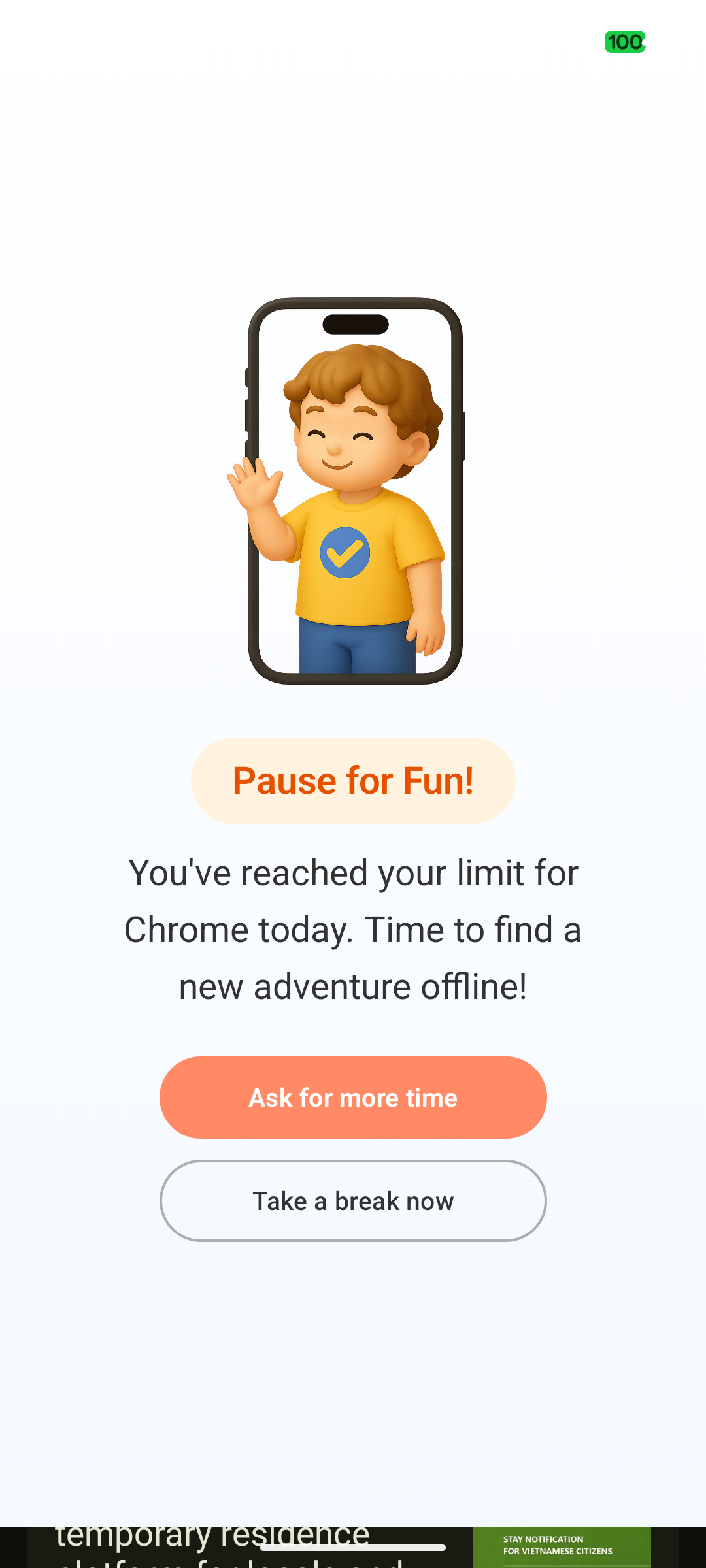
Bildunterschrift: Benutzeroberfläche auf dem Gerät des Kindes bei der Auswahl der Zusatzzeit und dem Senden der Anfrage.
🔔 Schritt 2: Eltern erhalten Push-Benachrichtigung
Sobald die Anfrage erfolgreich gesendet wurde:
- Der Server sendet eine Push-Benachrichtigung mit hoher Priorität an das Smartphone der Eltern.
- Der Inhalt der Benachrichtigung lautet: "Sarah bittet um 15 Minuten zusätzliche Bildschirmzeit für: Hausaufgaben machen."
- Durch Tippen auf die Benachrichtigung öffnet sich direkt der Bereich Zusatzzeitanfragen in der Fami Hero Eltern-App.
🛠️ Schritt 3: Eltern prüfen und entscheiden
Auf dem Bildschirm Zusatzzeitanfragen der Eltern-App:
- Die Eltern sehen die ausstehende Anfrage mit Name des Kindes, gewünschter Dauer und der eingegebenen Begründung.
- Die Eltern wählen eine der folgenden Schnellaktionen:
- Genehmigen (Definierte Dauer): Wählen Sie die Freigabe für
15 Minuten,30 Minuten,60 Minutenoder legen Sie eine benutzerdefinierte Dauer fest. - Immer erlauben: Ändern Sie den Status der App dauerhaft auf "Immer erlaubt", wenn es sich um eine wichtige Schul-App handelt.
- Ablehnen: Tippen Sie auf Ablehnen oder ignorieren Sie die Anfrage.
- Genehmigen (Definierte Dauer): Wählen Sie die Freigabe für
- Die Entscheidung wird sofort sicher an das Gerät des Kindes übertragen.
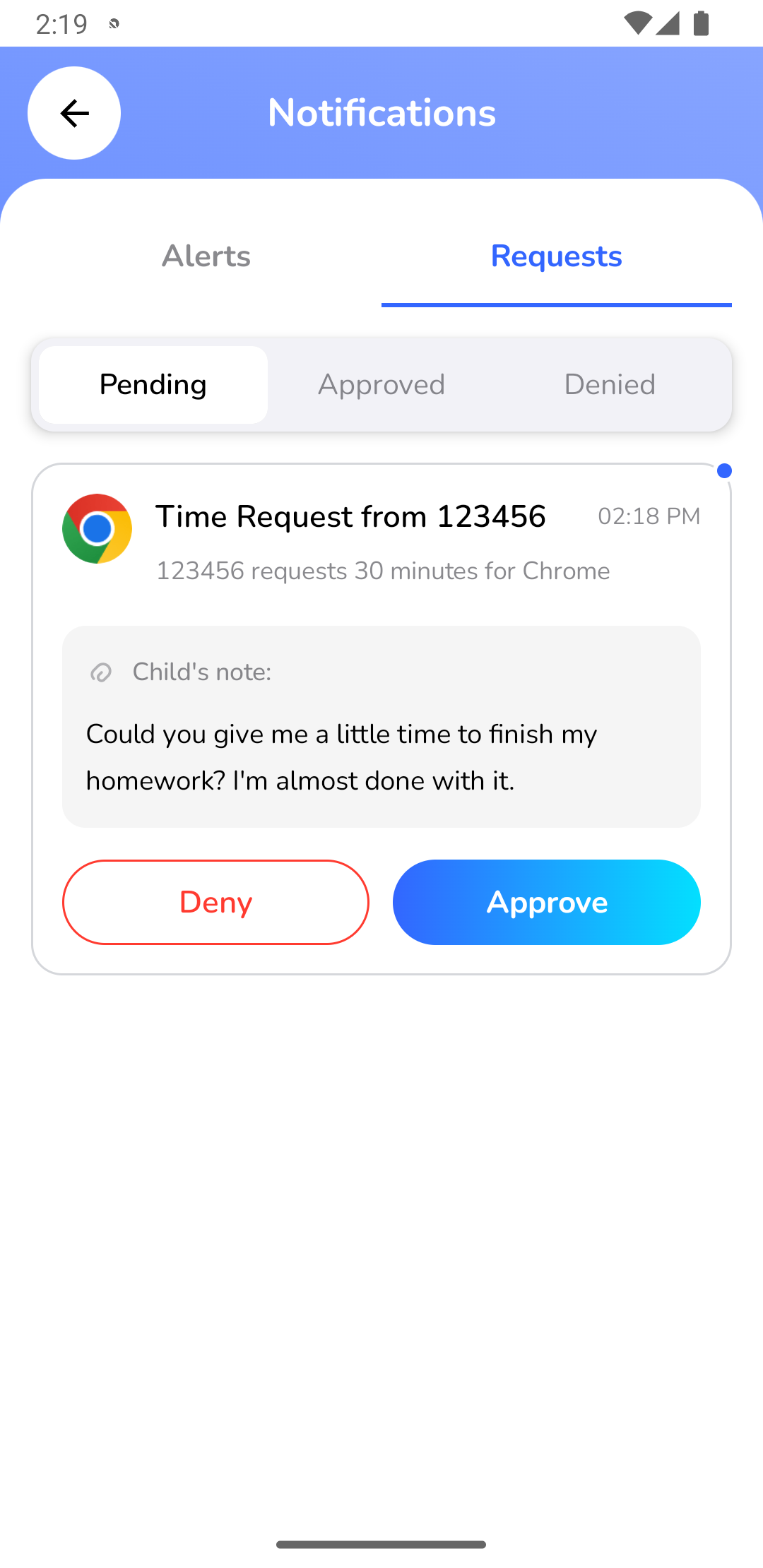
Bildunterschrift: Die Genehmigungsoberfläche auf dem Eltern-Smartphone mit den ausstehenden Anfragen sowie Schnellwahltasten.
⚡ Schritt 4: Echtzeit-Synchronisierung der Geräte
- Wenn genehmigt: Die App Fami Hero Kids auf dem Gerät des Kindes empfängt den Freigabebefehl im Hintergrund, passt das tägliche Limit automatisch an und schließt den Sperrbildschirm automatisch innerhalb von 2 Sekunden. Das Kind kann das Gerät sofort wieder nutzen.
- Wenn abgelehnt: Der Bildschirm des Kindes wechselt in den Zustand "Anfrage abgelehnt" und bleibt gesperrt. Um Spamming zu vermeiden, kann das Kind für die nächsten 15 Minuten keine neue Anfrage senden.
⏭️ Nächster Schritt
Fami Hero bietet auch effektive Werkzeuge, um die physische Sicherheit Ihres Kindes im Alltag zu gewährleisten. Lesen Sie weiter unter Standort & Geofences.