Webfilterung & Sicheres Surfen
Fami Hero enthält ein fortschrittliches Web-Schutzsystem, mit dem Eltern den Zugriff auf unangemessene Websites einschränken und ein sicheres Surfen auf dem Gerät des Kindes gewährleisten können. Diese Anleitung beschreibt die Konfiguration der intelligenten Webfilterung, Ausnahmen, Schlüsselwörter und die Überprüfung blockierter Verlaufsprotokolle.
🛡️ Intelligente Webfilter-Konfiguration
Eltern können die Web-Sicherheitsrichtlinien direkt über die Registerkarte Webfilter in der Eltern-App verwalten.
1. Der Hauptschalter (Intelligente Filterung)
- Der Hauptschalter Intelligenter Webfilter aktiviert oder deaktiviert die gesamte Filter-Engine.
- Wenn er aktiv ist, überwacht Fami Hero die Browser-Tabs des Kindes in Echtzeit und wendet Sicherheitsblockierungen basierend auf Ihren Regeln an.
2. Website-Kategorien
Eltern können Blockierungsregeln für bestimmte Inhaltskategorien aktivieren oder deaktivieren:
- Kategorien: Schalten Sie den Schutz für Kategorien wie Erotik/Erwachseneninhalte, Glücksspiel, Gewalt, Soziale Medien und Spiele ein oder aus.
- Domain-Suche: Tippen Sie auf eine beliebige Kategorie, um eine Liste der Domains zu öffnen, die in dieser Filterkategorie enthalten sind (z. B. um zu sehen, welche speziellen Spiele- oder sozialen Domains blockiert sind).
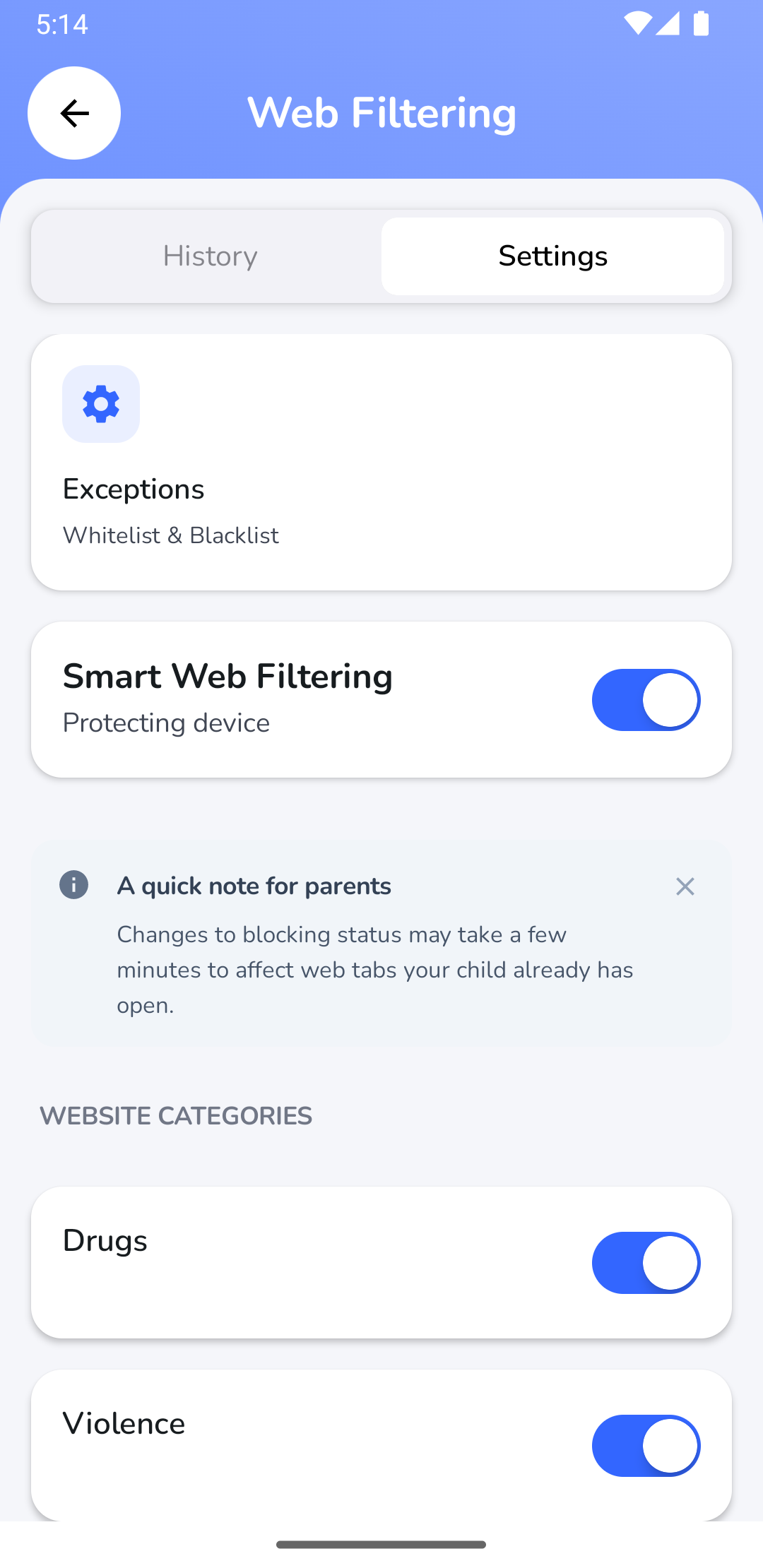
Bildunterschrift: Konfiguration des Hauptschalters und der Kategorieblockierungen in den Webfilter-Einstellungen der Eltern.
📝 Whitelists, Blacklists & Schlüsselwörter
Um den Schutz genau auf die Bedürfnisse Ihrer Familie abzustimmen, unterstützt Fami Hero granulare Ausnahmen und Schlüsselwortblockierungen.
1. Whitelist (Immer erlauben)
- Fügen Sie bestimmte Domains hinzu (z. B.
wikipedia.org,planet-wissen.de), auf die das Kind immer zugreifen darf, wodurch die Kategorie-Blockierungsregeln überschrieben werden.
2. Blacklist (Immer blockieren)
- Fügen Sie bestimmte Domains hinzu (z. B.
youtube.com,reddit.com), die dauerhaft blockiert werden sollen, unabhängig von den aktiven Kategorieeinstellungen.
3. Blockierte Schlüsselwörter
- Geben Sie bestimmte Begriffe oder Wörter ein. Wenn das Kind versucht, eine URL aufzurufen, die eines Ihrer Schlüsselwörter enthält, wird der Browser-Tab sofort blockiert.
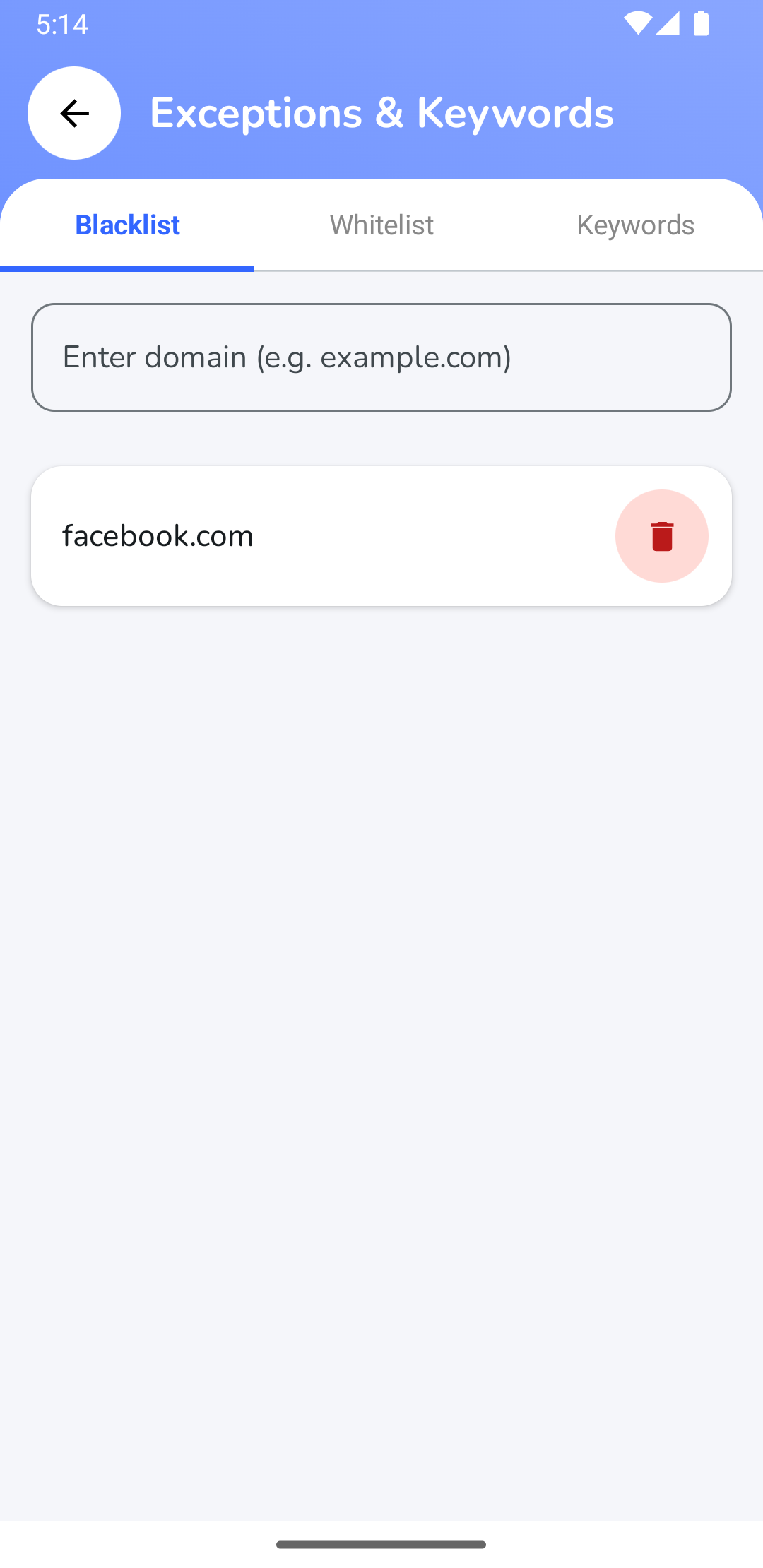
Bildunterschrift: Hinzufügen von erlaubten/blockierten Domains und benutzerdefinierten Sicherheits-Schlüsselwörtern.
🗃️ Blockierungsprotokolle im Verlauf
Jedes Mal, wenn ein Kind versucht, eine gesperrte Website zu besuchen, registriert Fami Hero diesen Versuch und meldet ihn im Aktivitäts-Feed der Eltern.
Im Verlaufs-Feed enthaltene Informationen:
- Domain-Name: Zeigt die genaue Webadresse an, die das Kind aufrufen wollte.
- Grund für Blockierung: Zeigt an, warum die Website blockiert wurde (z. B. "Blockiert durch Kategorie Erwachseneninhalte" oder "Blockiert durch benutzerdefinierte Blacklist").
- Zeitstempel: Datum und Uhrzeit des Blockierungsversuchs.
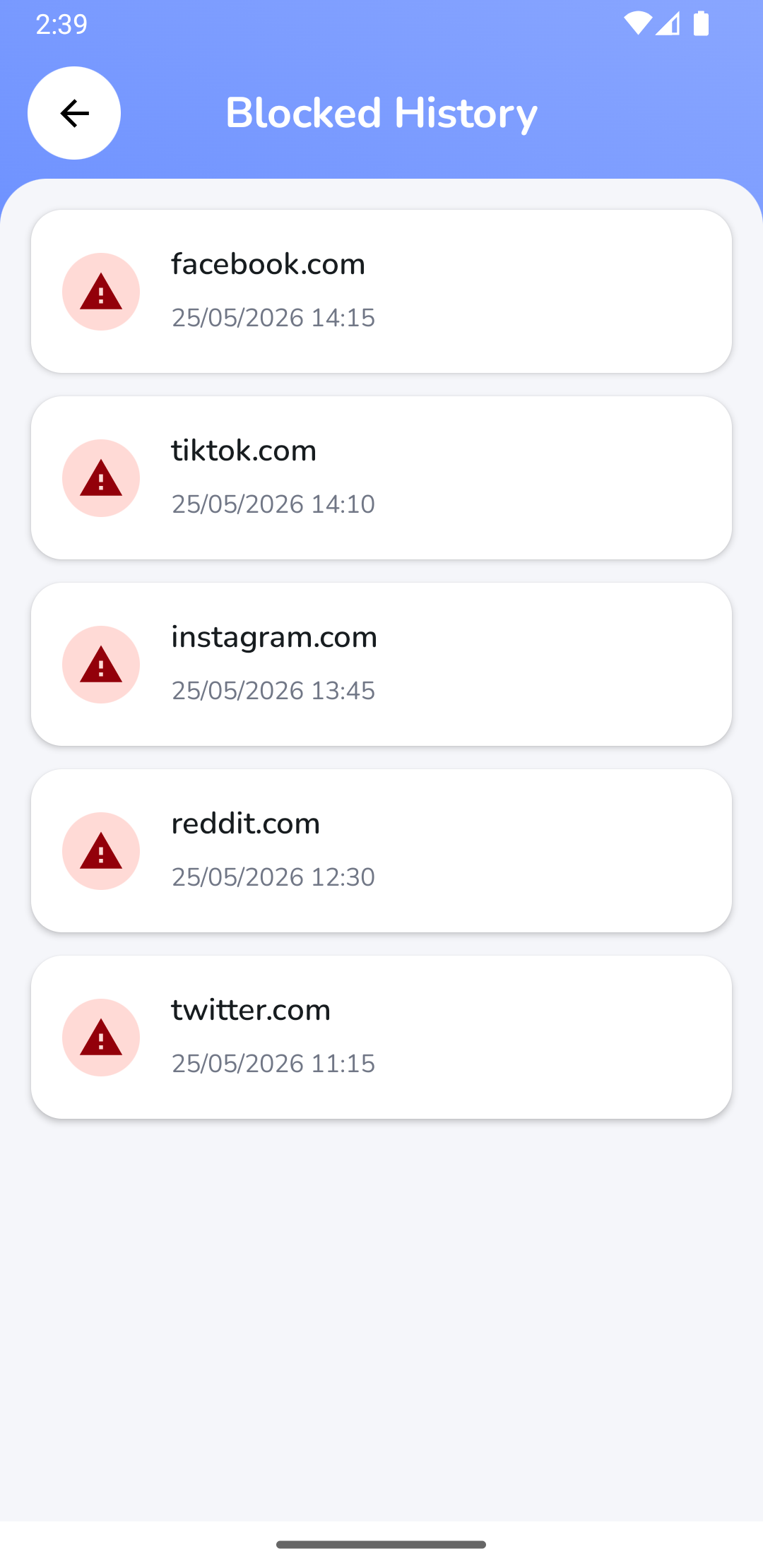
Bildunterschrift: Überprüfung der Liste blockierter Website-Zugriffsversuche mit Domain-Metadaten und Blockierungsgründen.
[!NOTE] Übertragungszeit: Änderungen an den Blockierungsregeln können einige Minuten dauern, bis sie sich auf Web-Tabs auswirken, die das Kind bereits auf seinem Gerät geöffnet hat.
⏭️ Nächster Schritt
Schützen Sie Ihr Kind vor schädlicher Sprache und Cybermobbing. Weiter mit Inhaltsüberwachung.