SOS-Notrufe
Fami Hero verfügt über einen SOS-Panikknopf, mit dem Kinder in Notfällen sofort ein Notsignal an das Smartphone der Eltern senden können. Diese Anleitung beschreibt, wie das Kind das Notsignal auslöst, wie das System reagiert und wie die Eltern reagieren sollten.
🚨 Der SOS-Notruf-Ablauf
Wenn ein Kind das SOS-Signal auslöst, überspringt das System alle normalen Synchronisierungsintervalle, um die genauen Koordinaten sofort an die Eltern zu übertragen und einen lautstarken Alarm auszulösen.
📲 Schritt 1: Kind löst SOS-Notruf aus
Um ein versehentliches Auslösen zu verhindern, erfordert die SOS-Taste ein gezieltes Gedrückthalten:
- Öffnen Sie die App Fami Hero Kids. (Wenn das Gerät durch Schlafenszeit oder Limits gesperrt ist, bleibt die SOS-Taste auf dem Sperrbildschirm zugänglich).
- Tippen und halten Sie die rote SOS-Taste für 5 Sekunden gedrückt.
- Auf dem Bildschirm wird ein Countdown angezeigt:
5... 4... 3... 2... 1... - Lassen Sie die Taste los, um den Vorgang abzubrechen. Wenn Sie die Taste bis zum Ende des Countdowns gedrückt halten, vibriert das Gerät und das SOS-Signal wird gesendet.
Bildunterschrift: Der Countdown-Bildschirm beim Gedrückthalten der SOS-Taste in der Fami Hero Kids App.
🔔 Schritt 2: Eltern erhalten dringenden Notruf
Sobald das Notsignal gesendet wurde:
- Der Server sendet sofort eine Push-Benachrichtigung an alle gekoppelten Elterngeräte.
- Unter Android und iOS, ist diese Benachrichtigung als Kritischer Alarm (Critical Alert) klassifiziert. Sie umgeht automatisch die Stummschaltung (Do Not Disturb) des Eltern-Smartphones und gibt ein lautes, kontinuierliches Alarmsignal ab.
- Auf dem Sperrbildschirm der Eltern wird angezeigt: "KRITISCHER ALARM: Kind hat SOS ausgelöst! Tippen Sie hier, um den Standort sofort anzuzeigen."
🗺️ Schritt 3: Reaktion der Eltern & Live-Verfolgung
- Die Eltern tippen direkt auf die Push-Benachrichtigung.
- Die Fami Hero Eltern-App öffnet sich automatisch direkt im Notfall-Überwachungsbildschirm.
- Die Benutzeroberfläche zeigt:
- Eine Vollbildkarte, die sich automatisch auf den genauen Standort des Kindes zentriert.
- Eine Stecknadel, die den Notfall-Standort des Kindes anzeigt (im Hintergrund alle 5 Minuten aktualisiert, oder sofort über die Schaltfläche Aktualisieren).
- Eine Schnellwahltaste zur Anwahl des Kindes.
- Eine Schaltfläche zur Wegbeschreibung über Google Maps oder Apple Maps zum Standort des Kindes.
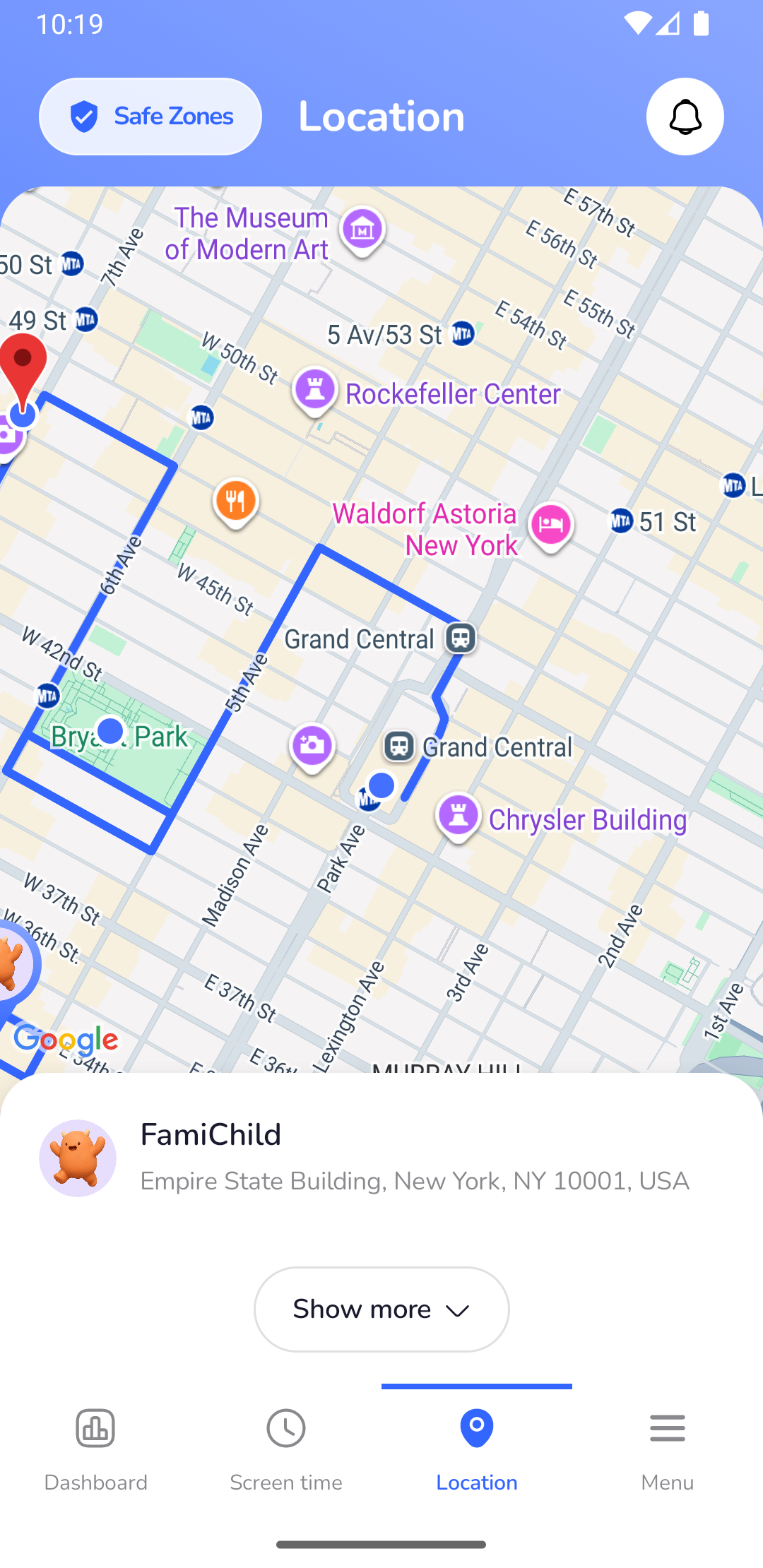
Bildunterschrift: Die Notfall-Benutzeroberfläche der Eltern zeigt den genauen Standort des Kindes auf der Karte.
🛑 Schritt 4: SOS-Alarm beenden
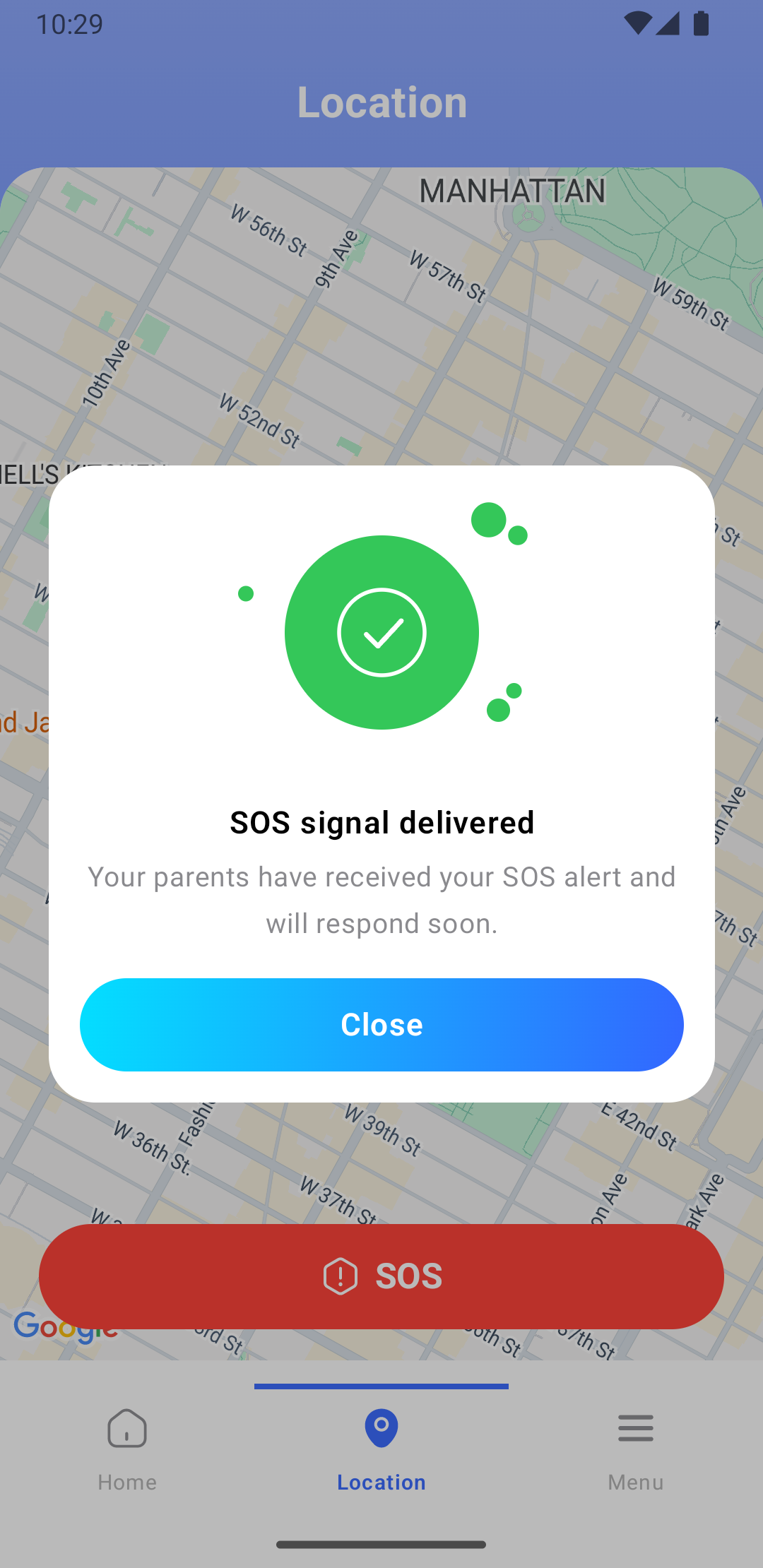
- Kinder-Seite: Sobald der Notfall gelöst ist oder das Signal erfolgreich gesendet wurde, kann das Kind auf dem SOS-Bestätigungsbildschirm auf Schließen tippen, um das Popup-Fenster zu schließen und zur Hauptkarte zurückzukehren.
- Eltern-Seite: Die Eltern überprüfen den Standort des Kindes auf der Notfallkarte. Da es sich beim SOS-Signal um einen einmaligen Notruf mit hoher Priorität handelt, ist auf dem Eltern-Dashboard keine manuelle Deaktivierung erforderlich. Das System kehrt automatisch in den Standard-Überwachungsmodus zurück.
⏭️ Nächster Schritt
Eltern können auch den Bildschirm des Kindes aus der Ferne überprüfen. Lesen Sie weiter unter Bildschirmaufnahmen aus der Ferne.