Remote-Screenshots & Überwachung
Fami Hero ermöglicht es Eltern, in Echtzeit zu überprüfen, was auf dem Bildschirm ihres Kindes angezeigt wird. Diese Anleitung beschreibt, wie Sie Bildschirmaufnahmen aus der Ferne anfordern, den Verlauf einsehen und welche Sicherheits- und Datenschutzrichtlinien dabei gelten.
📸 1. Echtzeit-Bildschirmaufnahmen anfordern (On-Demand)
Eltern können über die Eltern-App sofort eine Bildschirmaufnahme des aktiven Kindergeräts anfordern.
So fordern Sie eine Aufnahme an:
- Öffnen Sie die Fami Hero Eltern-App und wählen Sie das Profil des Kindes.
- Tippen Sie auf den Tab Überwachung oder Screenshots.
- Tippen Sie auf die Schaltfläche Capture.
- Die Eltern-App sendet einen sicheren Hintergrundbefehl über den Server an das Kindergerät.
- Innerhalb von 3 bis 5 Sekunden fertigt das Kindergerät automatisch eine Bildschirmaufnahme an und lädt sie in den verschlüsselten Fami Hero Cloud-Speicher hoch.
- Die Eltern-App aktualisiert sich automatisch und zeigt das neue Bild in der Liste an.
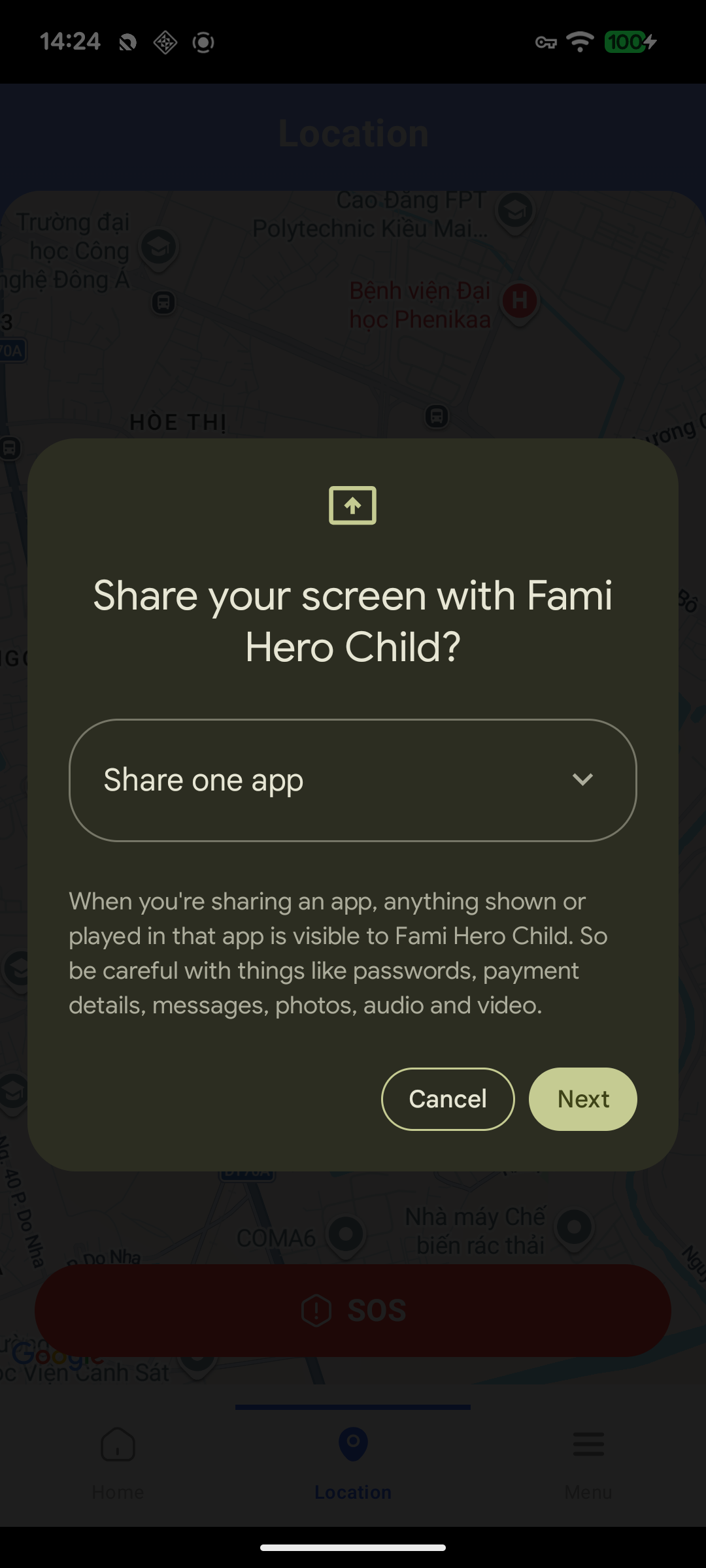
Bildunterschrift: Tippen Sie auf dem Dashboard der Eltern auf "Capture", um die Aufnahme im Hintergrund zu starten.
🗃️ 2. Verlauf der Bildschirmaufnahmen einsehen
Alle erfolgreich erstellten Bildschirmaufnahmen werden in einer sicheren Liste gespeichert, damit die Eltern sie bei Bedarf überprüfen können.
Filter- und Verwaltungsfunktionen:
- Zeitfilter: Filtern Sie Bilder nach heute, gestern oder wählen Sie ein bestimmtes Datum im Kalender.
- App-Kontext: Jedes Bild wird mit dem Namen der App gekennzeichnet, die zum Zeitpunkt der Aufnahme geöffnet war (z. B. "YouTube", "Chrome", "TikTok").
- Vergrößerte Ansicht: Tippen Sie auf ein Vorschaubild, um es in voller Größe anzuzeigen.
- Bilder löschen: Eltern können das Papierkorb-Symbol wählen, um das Bild dauerhaft vom Server zu löschen.
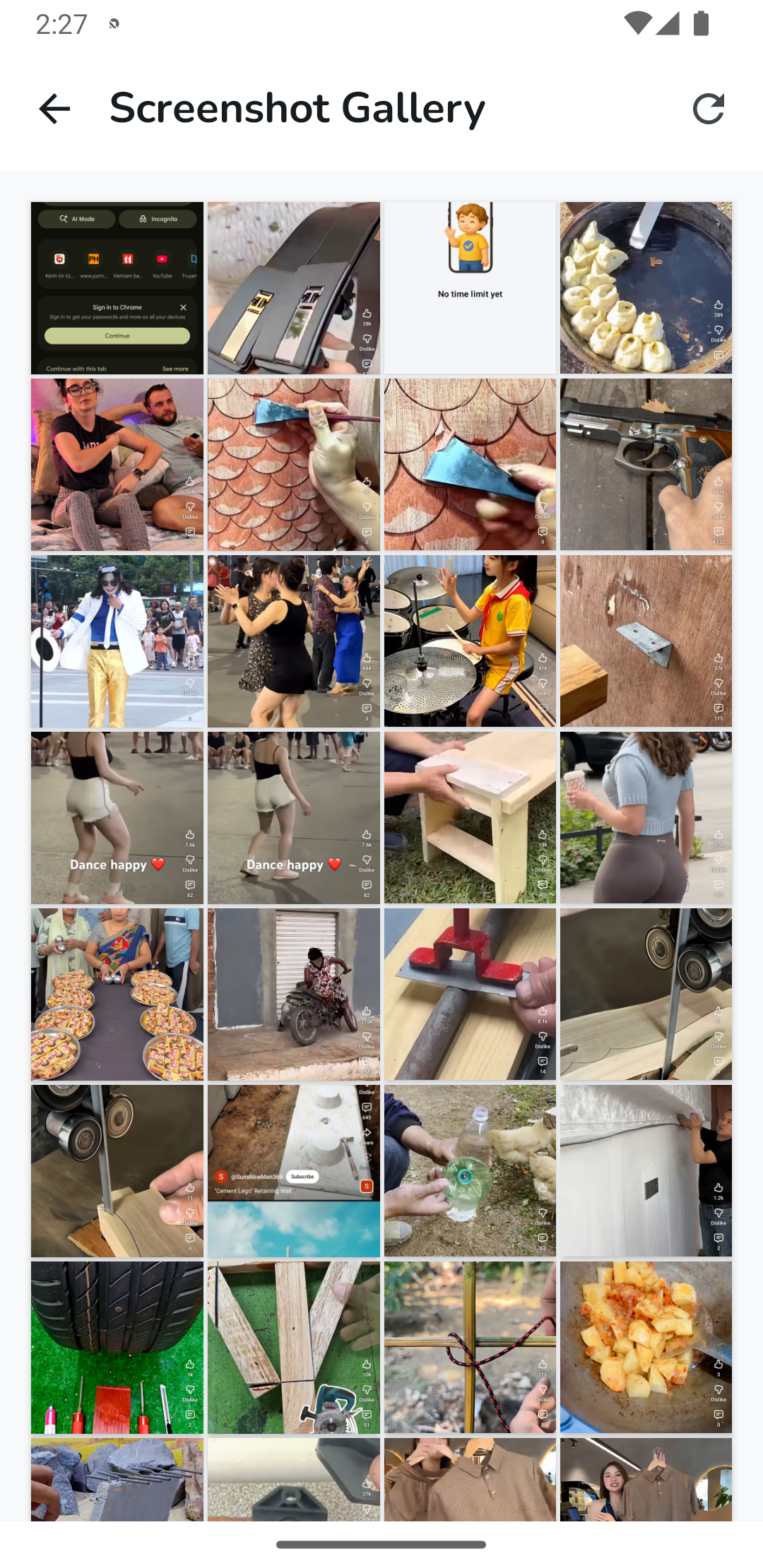
Bildunterschrift: Verlauf der erstellten Bildschirmaufnahmen mit den entsprechenden Anwendungsnamen.
⏭️ Nächster Schritt
Schützen Sie Ihr Kind vor schädlichen Websites und unsicheren Suchanfragen. Weiter mit Webfilterung.