Fernkamera & Bildschirmspiegelung
Fami Hero bietet fortschrittliche visuelle Echtzeit-Sicherheitsfunktionen, mit denen Eltern sofort sehen können, was um das Gerät ihres Kindes herum oder direkt auf dem Bildschirm geschieht. Diese Tools nutzen sicheres WebRTC (Web Real-Time Communication) mit extrem niedriger Latenz für Peer-to-Peer-Streaming, um Live-Video- oder Bildschirminhalte direkt zwischen den Geräten zu übertragen.
📹 1. Fernkamera (Remote Cam)
Die Funktion Remote Cam ermöglicht es Eltern, einen Live-Video-Stream von der Front- oder Rückkamera des Kindergeräts anzufordern, wodurch das Smartphone in eine mobile Sicherheitskamera verwandelt wird.
So funktioniert es:
- Öffnen Sie die Fami Hero Eltern-App und wählen Sie das Profil des Kindes auf dem Dashboard.
- Tippen Sie auf der Karte Echtzeit-Ansicht & Überwachung (Live View & Monitoring) auf die Schaltfläche Remote Cam.
- Die Eltern-App sendet eine sichere Echtzeit-Signalisierungsanfrage über WebSockets, um eine WebRTC-Verbindung aufzubauen.
- Sobald die Verbindung hergestellt ist, wird der Live-Stream dank hochauflösender Bildverarbeitung sofort auf dem Bildschirm der Eltern angezeigt.
Steuerung während des Streams:
- Kamera wechseln (Switch Camera): Tippen Sie auf die Schaltfläche Kamera wechseln am unteren Rand des Streams, um nahtlos zwischen der Frontkamera und der Rückkamera des Kindergeräts umzuschalten.
- Vollbildmodus: Der Stream wird automatisch skaliert, um den gesamten Bildschirm auszufüllen.
- Zurückgehen (Go Back): Tippen Sie auf Zurückgehen oder den Zurück-Pfeil, um die WebRTC-Sitzung sofort zu beenden und die Kameranutzung auf dem Gerät des Kindes zu stoppen.
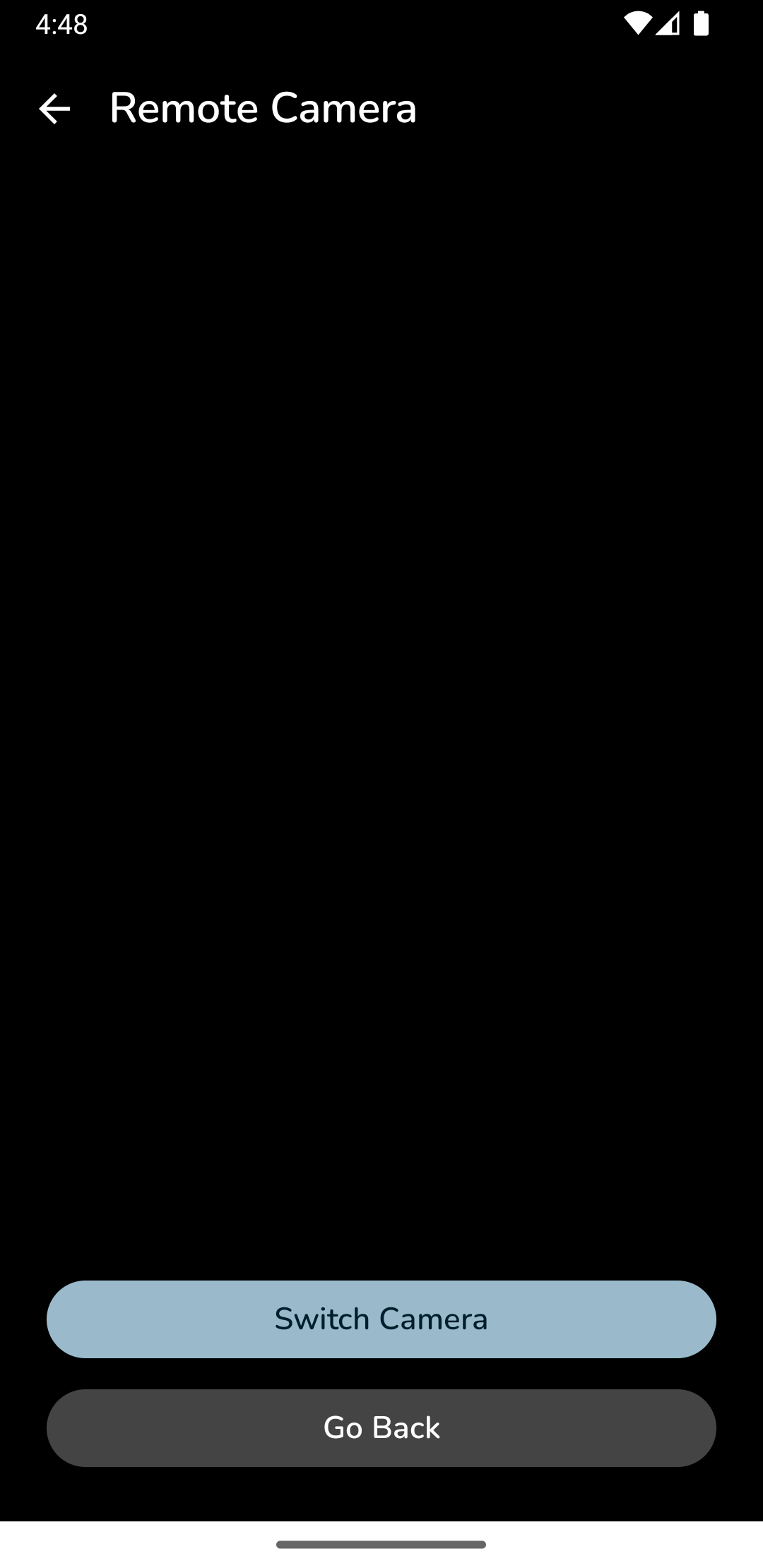
Bildunterschrift: Aktivierung des Fernkamera-Streams und Nutzung der Umschaltfunktion in der Eltern-App.
🖥️ 2. Live-Bildschirmspiegelung (Screen Mirroring)
Die Funktion Bildschirmspiegelung ermöglicht es Eltern, den aktiven Bildschirm des Kindes in Echtzeit zu sehen. Dies ist äußerst nützlich, um zu überprüfen, ob ein Kind lernt, Spiele spielt oder in nicht freigegebenen Apps chattet.
So funktioniert es:
- Tippen Sie auf dem Eltern-Dashboard unter Echtzeit-Ansicht & Überwachung auf die Schaltfläche Mirroring.
- Ein WebSocket-Befehl wird an das Gerät des Kindes gesendet, um eine Bildschirmaufzeichnungssitzung anzufordern.
- Das Gerät des Kindes startet automatisch das Android-Systemframework Media Projection, um die Bildschirmpixel sicher zu erfassen, und überträgt diese per WebRTC direkt an die Eltern-App.
- Die Eltern-App zeigt den Live-Bildschirm in einem integrierten Player an.
Steuerung während der Spiegelung:
- Spiegelung beenden (Stop Mirroring): Tippen Sie auf die rote Schaltfläche Stop Mirroring oder die Schaltfläche Zurückgehen, um den Peer-to-Peer-Kanal sicher zu schließen.
- Statusanzeige: Ein Overlay mit dem Text Screen Mirroring: Active (1080p - Live) bestätigt, dass die Verbindung aktiv ist und mit voller Auflösung übertragen wird.
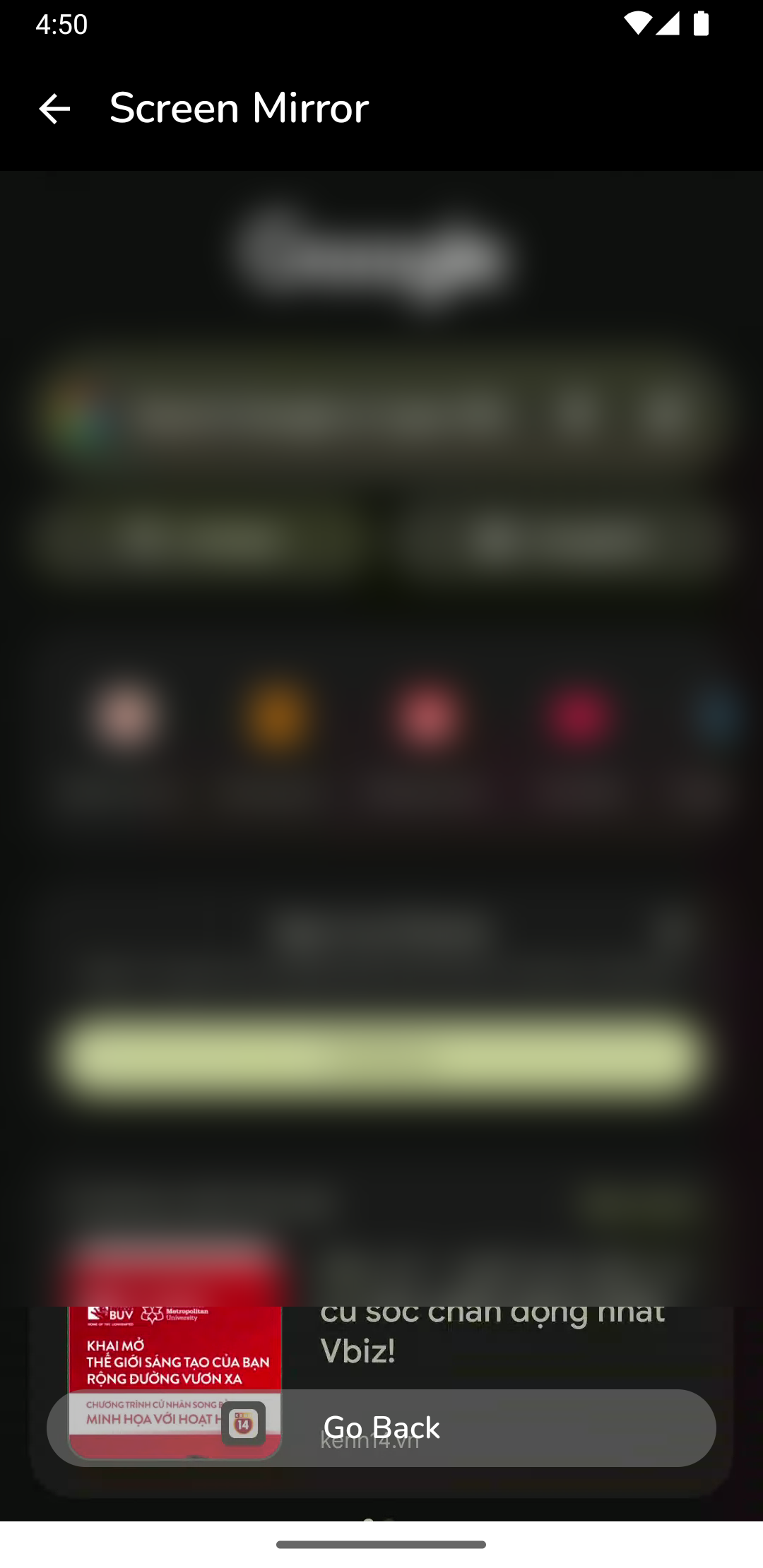
Bildunterschrift: Überwachung des Kindergeräts in Echtzeit, während nützliche Lernanwendungen verwendet werden.
🔑 Erforderliche Berechtigungen auf dem Kindergerät
Damit die Fernkamera und Bildschirmspiegelung reibungslos funktionieren, müssen bei der Einrichtung auf dem Gerät des Kindes folgende Berechtigungen konfiguriert werden:
- Kameraberechtigung: Erforderlich, damit Fami Hero Kids für die Remote-Cam-Funktion auf die Kamera-Hardware zugreifen kann.
- Mikrofonberechtigung: Optional, aber empfohlen, um Umgebungsgeräusche während der Sicherheits-Streams zu übertragen.
- Bildschirmaufzeichnungs-Berechtigung (Media Projection): Beim Starten der Spiegelung erfordert Android eine Systembestätigung zur Bildschirmübertragung. Fami Hero verarbeitet dies nach der Ersterteilung der Berechtigung sicher und automatisch im Hintergrund.
[!WARNING] Akkusparmodus & Hintergrundeinschränkungen: Die restriktiven Energiesparmodi von Android können WebRTC-Sitzungen oder Socket-Verbindungen vorzeitig beenden. Stellen Sie sicher, dass Fami Hero Kids in den Akkueinstellungen auf dem Kindergerät auf "Nicht eingeschränkt" (Unrestricted) gesetzt ist, um eine sofortige Verbindungsherstellung zu gewährleisten.
⏭️ Nächster Schritt
Nachdem die Echtzeit-Überwachung und die erweiterten Limits konfiguriert sind, können Sie nun die globalen Administrationswerkzeuge überprüfen. Weiter zu Dashboard & Analysen.