Standortverfolgung & Geofences
Fami Hero hilft Eltern, die physische Sicherheit ihres Kindes durch kontinuierliche GPS-Hintergrundverfolgung und anpassbare sichere Zonen (Geofences) zu überwachen. Diese Anleitung beschreibt die Funktionsweise der Live-Ortung, das Abrufen des Standortverlaufs und die Konfiguration sicherer Zonen.
📍 1. Live-GPS-Standortverfolgung
Wenn die Hintergrund-Standortberechtigung auf dem Gerät des Kindes aktiv ist, können die Eltern den genauen Standort jederzeit abfragen.
So rufen Sie den Live-Standort ab:
- Öffnen Sie die Fami Hero Eltern-App und wählen Sie das Profil des Kindes.
- Tippen Sie auf den Tab Standort (oder Karte).
- Die App lädt eine interaktive Karte mit folgenden Details:
- Die aktuelle Position des Kindes als Stecknadel.
- Ein Kreis für die GPS-Genauigkeit, der die Signalqualität anzeigt.
- Der aktuelle Batteriestand des Kindergeräts.
- Eine Schaltfläche Aktualisieren, um sofort neue Standortdaten anzufordern.
- Die Zeit der letzten Aktualisierung (z. B. "Vor 2 Minuten aktualisiert").
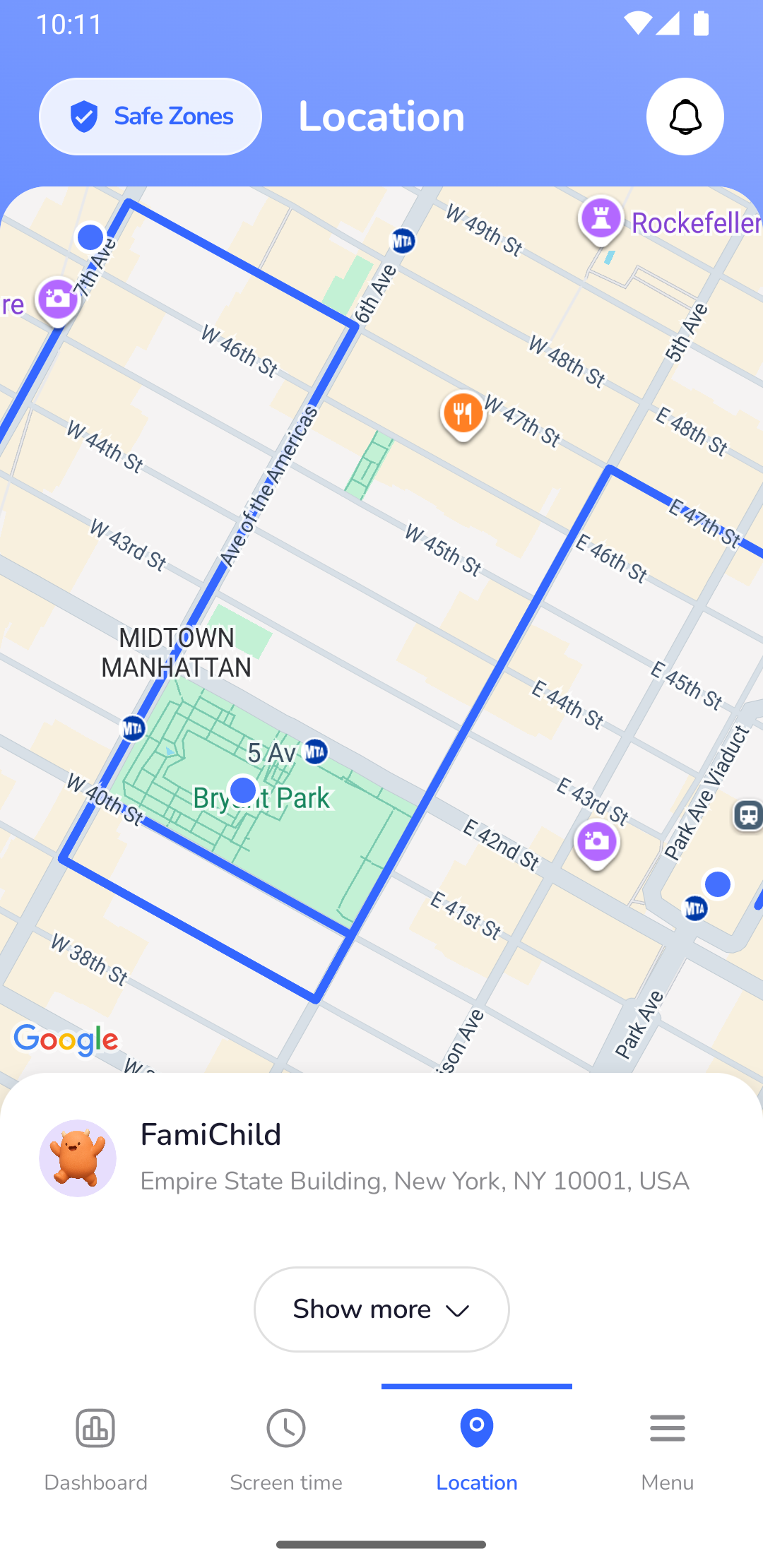
Bildunterschrift: Die Standortkarte in der Eltern-App zeigt den aktuellen Aufenthaltsort des Kindes in Echtzeit.
📜 2. Standortverlauf
Neben dem aktuellen Standort speichert die Plattform auch ein kontinuierliches Protokoll der Orte, an denen sich das Kind während des Tages aufgehalten hat.
So lesen Sie den Verlauf:
- Öffnen Sie den Tab Standort (Location).
- Suchen Sie auf der Karte die Adresskarte unten.
- Wischen Sie auf der Karte nach oben oder tippen Sie auf den Link Show more (Mehr anzeigen) im unteren Informationsfeld, um die detaillierte Zeitleiste einzublenden.
- Die App zeigt eine chronologische Zeitleiste der Standortdaten für den heutigen Tag an.
- Jeder Eintrag enthält:
- Die genaue Adresse oder das geografische Gebiet.
- Den genauen Zeitstempel.
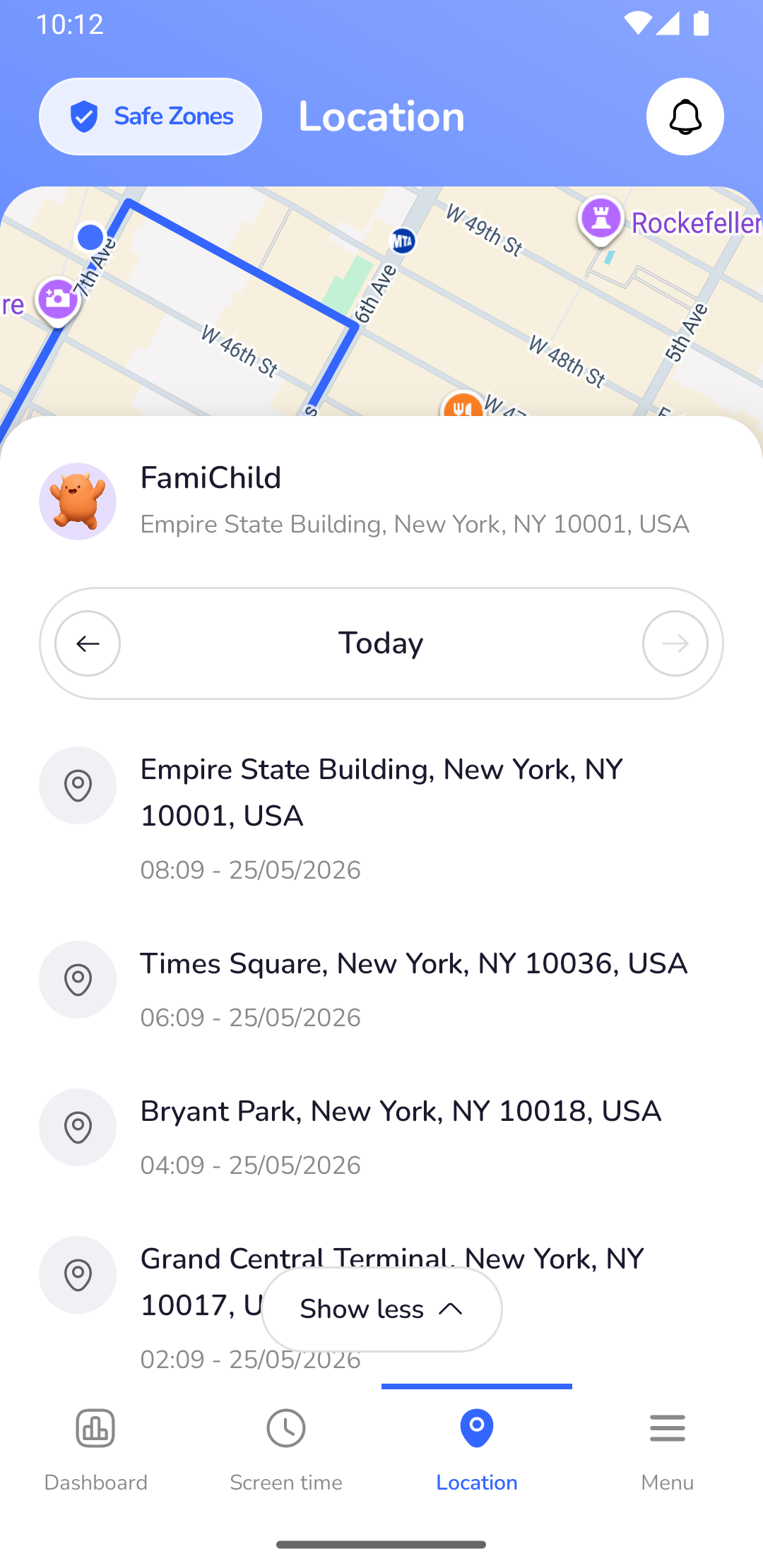
Bildunterschrift: Anzeige des detaillierten, chronologischen Standortverlaufs für den Tag durch Tippen auf "Show more".
🏠 3. Sichere Zonen einrichten (Geofencing)
Sichere Zonen (Geofences) sind virtuelle Grenzen, die Sie um wichtige Orte wie Zuhause, Schule oder Großeltern einrichten können. Wenn das Kind diese Zonen betritt oder verlässt, erhalten die Eltern sofort eine Push-Benachrichtigung.
So erstellen Sie eine sichere Zone:
- Navigieren Sie in der Eltern-App zum Tab Standort.
- Tippen Sie auf Sichere Zonen.
- Wählen Sie Neue Zone hinzufügen.
- Konfigurieren Sie die Details der sicheren Zone:
- Adresse suchen: Geben Sie die Adresse ein oder markieren Sie den Punkt direkt auf der Karte.
- Radius anpassen: Nutzen Sie den Schieberegler, um den Radius festzulegen (von
200 Meterbis2 Kilometer). - Benachrichtigungen: Aktivieren Sie Mitteilungen für Beim Betreten und/oder Beim Verlassen.
- Name: Geben Sie der Zone einen Namen (z. B. "Schule").
- Tippen Sie auf Zone erstellen.
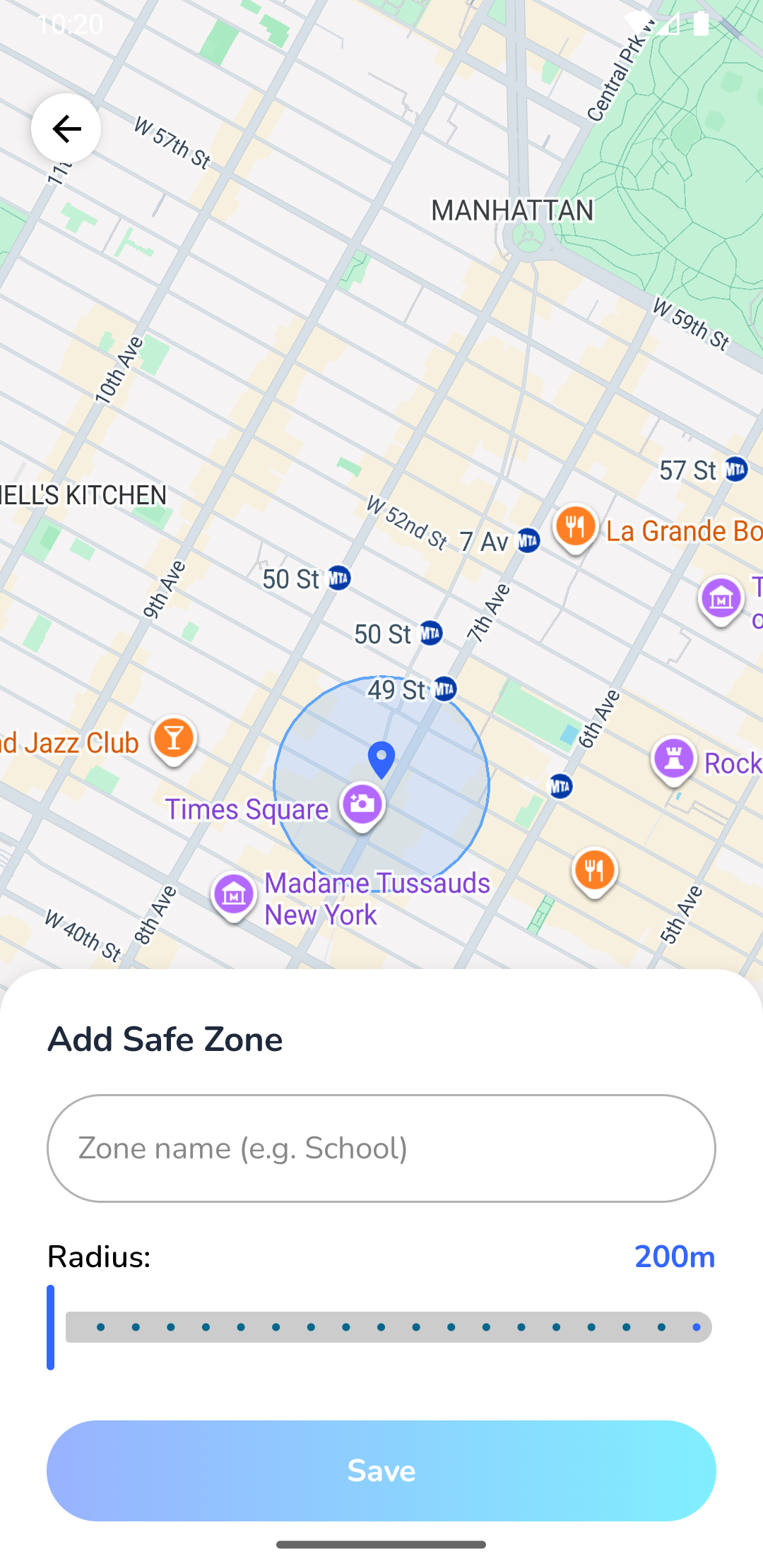
Bildunterschrift: Einstellung des Mittelpunkts und des Radius für eine sichere Zone in der Eltern-App.
💡 Tipps für eine präzise Standortbestimmung
- Hohe GPS-Genauigkeit: Stellen Sie sicher, dass auf dem Gerät des Kindes die Standortgenauigkeit in den Systemeinstellungen auf "Hohe Genauigkeit" (oder Google-Standortgenauigkeit) eingestellt ist.
- Netzwerkverbindung: Die Standortmeldung erfordert eine aktive mobile Datenverbindung oder WLAN. Wenn das Kindergerät offline ist, wird der letzte bekannte Standort angezeigt, bis das Gerät wieder online geht.
- Akku-Optimierungen ausschließen: Einige Android-Hersteller (insbesondere Xiaomi und Samsung) beenden Hintergrunddienste rigoros. Stellen Sie sicher, dass Fami Hero von der Akku-Optimierung ausgenommen ist. Siehe Fehlerbehebung für Hintergrundprozesse.
⏭️ Nächster Schritt
In Notfällen kann das Kind sofort ein Notsignal senden. Lesen Sie weiter unter SOS-Notrufe.