Inhaltsüberwachung & Sensible Schlüsselwörter
Fami Hero verfügt über ein intelligentes Hintergrund-Inhaltsüberwachungssystem, das auf dem Gerät Ihres Kindes nach sensiblen Wörtern und unangemessener Sprache sucht. Dieses proaktive Tool schützt Kinder vor Cybermobbing, Diskussionen über Selbstverletzung, Hassrede und der Konfrontation mit Themen für Erwachsene. Diese Anleitung erklärt, wie Sie Inhaltskategorien einrichten, benutzerdefinierte Schlüsselwortlisten verwalten und erkannte Verlaufsprotokolle überprüfen.
🛡️ Intelligente Inhaltsüberwachung konfigurieren
Eltern können die Regeln zur Inhaltssicherheit über die Einstellungen zur Inhaltsüberwachung in der Eltern-App verwalten.
1. Der intelligente Überwachungsschalter (Hauptschalter)
- Der Hauptschalter für die Intelligente Inhaltsüberwachung steuert die Scan-Engine im Hintergrund auf dem Gerät des Kindes.
- Wenn er aktiv ist (gekennzeichnet durch den grünen Status
"Protecting"), überwacht Fami Hero Textinteraktionen in Echtzeit. Wenn er deaktiviert ist, wird die Erkennung im Hintergrund vollständig angehalten.
2. Integrierte Inhaltskategorien
Fami Hero verfügt über vorkonfigurierte Wörterbücher für häufige Sicherheitsbedenken:
- Kategorien: Aktivieren Sie den Schutz für Kategorien wie Hassrede (Hate Speech), Selbstverletzung (Self Harm), Erwachseneninhalte (Adult Content), Cybermobbing (Cyberbullying) und Gewalt (Violence).
- Wörterbuch-Suche: Tippen Sie auf eine beliebige Kategorie in der Einstellungsliste, um eine Suche im Wörterbuch auszulösen. Es öffnet sich ein Bottom Sheet, das die vollständige Liste der Standard-Schlüsselwörter anzeigt, die von diesem spezifischen Kategoriefilter gescannt werden.
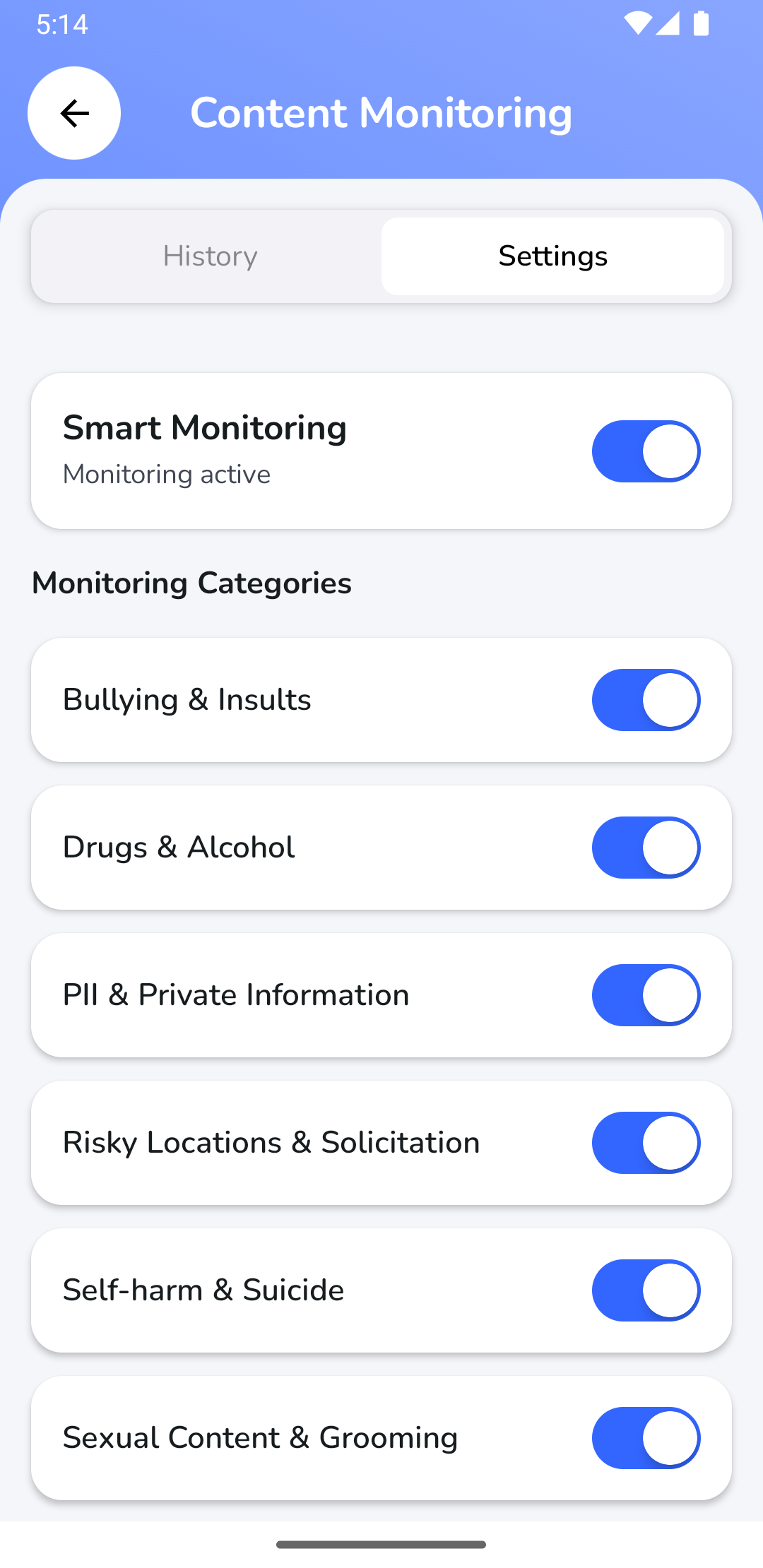
Bildunterschrift: Aktivieren des intelligenten Überwachungsschalters und der Sicherheitskategorien in der Eltern-App.
📝 Benutzerdefinierte sensible Schlüsselwörter
Zusätzlich zu den integrierten Kategorien können Eltern eigene Wörter oder Sätze definieren, die auf ihre Haushaltsregeln oder den lokalen Slang abgestimmt sind.
1. Ein benutzerdefiniertes Schlüsselwort hinzufügen
- Tippen Sie auf die Schaltfläche Hinzufügen (+) neben der Überschrift des Bereichs für benutzerdefinierte Wörter.
- Geben Sie im Dialogfeld ein bestimmtes Wort oder einen Satz ein und tippen Sie auf Hinzufügen.
- Fami Hero fügt dieses Schlüsselwort sofort in die aktive Echtzeit-Scan-Datenbank auf dem Gerät des Kindes ein.
2. Ein benutzerdefiniertes Schlüsselwort entfernen
- Sehen Sie sich Ihre angepasste Liste im Bereich für benutzerdefinierte Wörter an.
- Tippen Sie auf das Papierkorb-Symbol neben einem Wort, um es dauerhaft aus der aktiven Datenbank zu entfernen.
🗃️ Verlaufsprotokolle für erkannte Inhalte
Wenn Fami Hero ein passendes Schlüsselwort auf dem Gerät des Kindes erkennt, erfasst es den Textkontext, protokolliert das Ereignis und sendet eine Warnung an die Eltern-App.
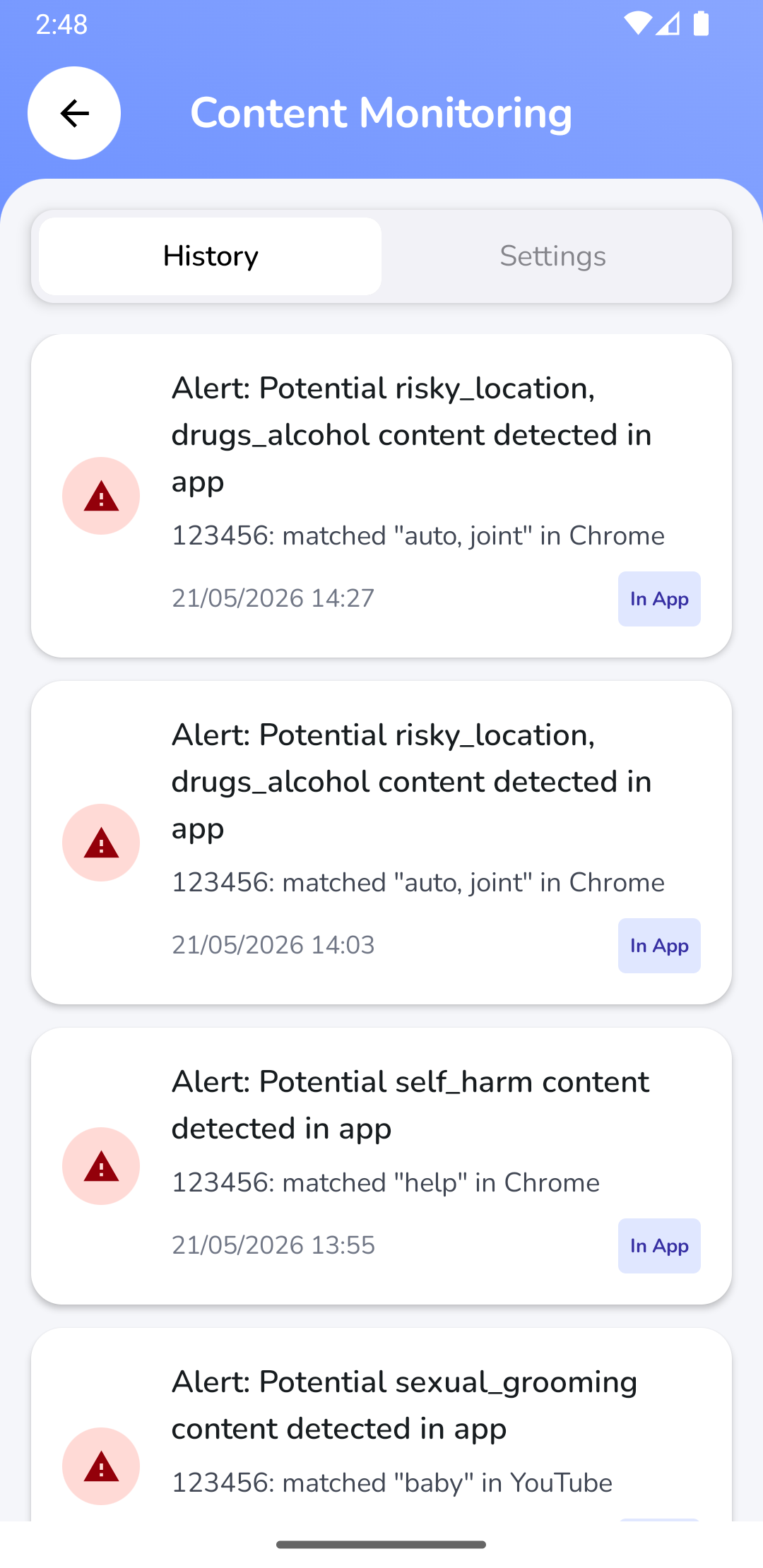
Bildunterschrift: Überprüfung der markierten sensiblen Schlüsselwörter und Kontextprotokolle in der Eltern-App.
Im Verlaufs-Feed enthaltene Informationen:
- App-Kontext & Quelle: Fami Hero identifiziert, wo das Wort gefunden wurde. Wenn die App im Geräteinventar installiert ist, wird das offizielle App-Symbol angezeigt (z. B. YouTube, Facebook, TikTok, Chrome). Wenn keine App identifiziert werden kann, wird ein rotes Warnsymbol angezeigt.
- Warnungsdetails:
- Titel: Erklärt, welche Kategorie oder welcher benutzerdefinierte Filter ausgelöst wurde (z. B. "Alert: Potential self_harm content detected in app").
- Textkontext (Body): Zeigt den umgebenden Text oder den Nachrichtentext an, in dem der sensible Begriff markiert wurde (z. B. "123456: matched "help" in Chrome"), sodass Eltern den vollen Kontext der Interaktion verstehen können.
- Zeitstempel: Das lokale Datum und die Uhrzeit des Verstoßes.
- Erkennungsquellen-Badge:
- In-App (Indigo-Badge): Text, der direkt in einer aktiven Vordergrundanwendung eingegeben oder angezeigt wurde.
- Notification (Rosa-Badge): Sensible Inhalte, die über eingehende Systembenachrichtigungen von Messenger- oder Social-Apps eingegangen sind.
[!TIP] Aktiver Schutz: Um ein kontinuierliches Scannen zu gewährleisten, verwendet Fami Hero einen dauerhaften Hintergrunddienst. Eltern können die Richtlinien zur Hintergrundoptimierung in den Einstellungen der App lesen, um zu verhindern, dass das Betriebssystem diese Sicherheitsaufgaben beendet.
⏭️ Nächster Schritt
Nachdem Sie Standortverfolgung, Notfallbenachrichtigungen, Screenshots, Webfilterung und Inhaltsüberwachung konfiguriert haben, können Sie die visuellen Echtzeit-Überwachungsfunktionen überprüfen. Weiter mit Kamera & Spiegelung.