Aktivierung der Betriebssystem-Berechtigungen
Um Bildschirmzeitlimits durchzusetzen, den physischen Standort zu verfolgen und eine unbefugte Deinstallation zu verhindern, benötigt die App Fami Hero Kids mehrere Systemberechtigungen. Ein integrierter Einrichtungsassistent führt Sie Schritt für Schritt durch diese Einstellungen.
🤖 Android-Berechtigungsliste
Unter Android führt Sie die App nacheinander durch die folgenden Berechtigungen:
| Betriebssystem-Berechtigung | Warum sie wichtig ist | Sicherer Zustand (Ja/Nein) |
|---|---|---|
1. Standort (Immer zulassen) | Erforderlich für die GPS-Hintergrundverfolgung und SOS-Standortberichte. | Ja: Auch bei geschlossener App aktiv. Nein: Nur aktiv, wenn die App geöffnet ist. |
| 2. Benachrichtigungen | Ermöglicht es der App, Warnungen und verbleibende Zeit auf dem Kindergerät anzuzeigen. | Ja: Aktiviert. Nein: Systemseitig blockiert. |
| 3. Benachrichtigungszugriff | Erlaubt Fami Hero, Systemwarnungen und Statusänderungen zu überwachen. | Ja: Dienst aktiviert. Nein: Berechtigung entzogen. |
| 4. Akku-Optimierung deaktivieren | Verhindert, dass das Android-System die App im Hintergrund beendet. | Ja: App wird nicht optimiert. Nein: Akkusparmodus aktiv, App wird beendet. |
| 5. Nutzungsdatenzugriff | Überwacht geöffnete Apps, um Nutzungsstatistiken und App-Limits zu berechnen. | Ja: Zugriff erlaubt. Nein: Inaktiv, Limits können nicht durchgesetzt werden. |
| 6. VPN-Verbindung (Lokales VPN) | Ermöglicht die remote Web-Filterung, indem DNS-Anfragen lokal auf dem Gerät überwacht und gefiltert werden. | Ja: Lokales VPN ist aktiv und filtert unsichere Websites. Nein: Inaktiv, Web-Filterung funktioniert nicht. |
| 7. Über anderen Apps einblenden | Zeigt den Sperrbildschirm ("Zeit abgelaufen" oder "App gesperrt") über anderen Apps an. | Ja: Zeichnen über Apps erlaubt. Nein: Inaktiv, Kind kann Sperre umgehen. |
| 8. Barrierefreiheit (Accessibility) | Verhindert unbefugtes Deinstallieren, Cache-Löschen oder Deaktivieren von Rechten. | Ja: Dienst aktiv. Nein: Deinstallationsschutz inaktiv. |
| 9. Geräteadministrator | Bietet erweiterten Deinstallationsschutz auf Betriebssystemebene. | Ja: Administrator aktiv. Nein: Inaktiv. |
🛠️ Schritt-für-Schritt-Konfiguration
Die App Fami Hero Kids öffnet automatisch die genaue Systemeinstellungsseite für jede Berechtigung. Befolgen Sie diese Schritte:
- Tippen Sie auf dem App-Bildschirm auf Berechtigung aktivieren.
- Die entsprechende Systemeinstellungsseite wird geöffnet.
- Suchen Sie Fami Hero Kids in der Liste.
- Stellen Sie den Schalter auf Ein oder Zulassen.
- Drücken Sie die Zurück-Taste, um zur App zurückzukehren. Fami Hero Kids verifiziert die Berechtigung sofort und leitet Sie zum nächsten Schritt weiter.
Bildunterschrift: Der Einrichtungsbildschirm in Fami Hero Kids führt Eltern Schritt für Schritt durch die Berechtigungen unter Android.
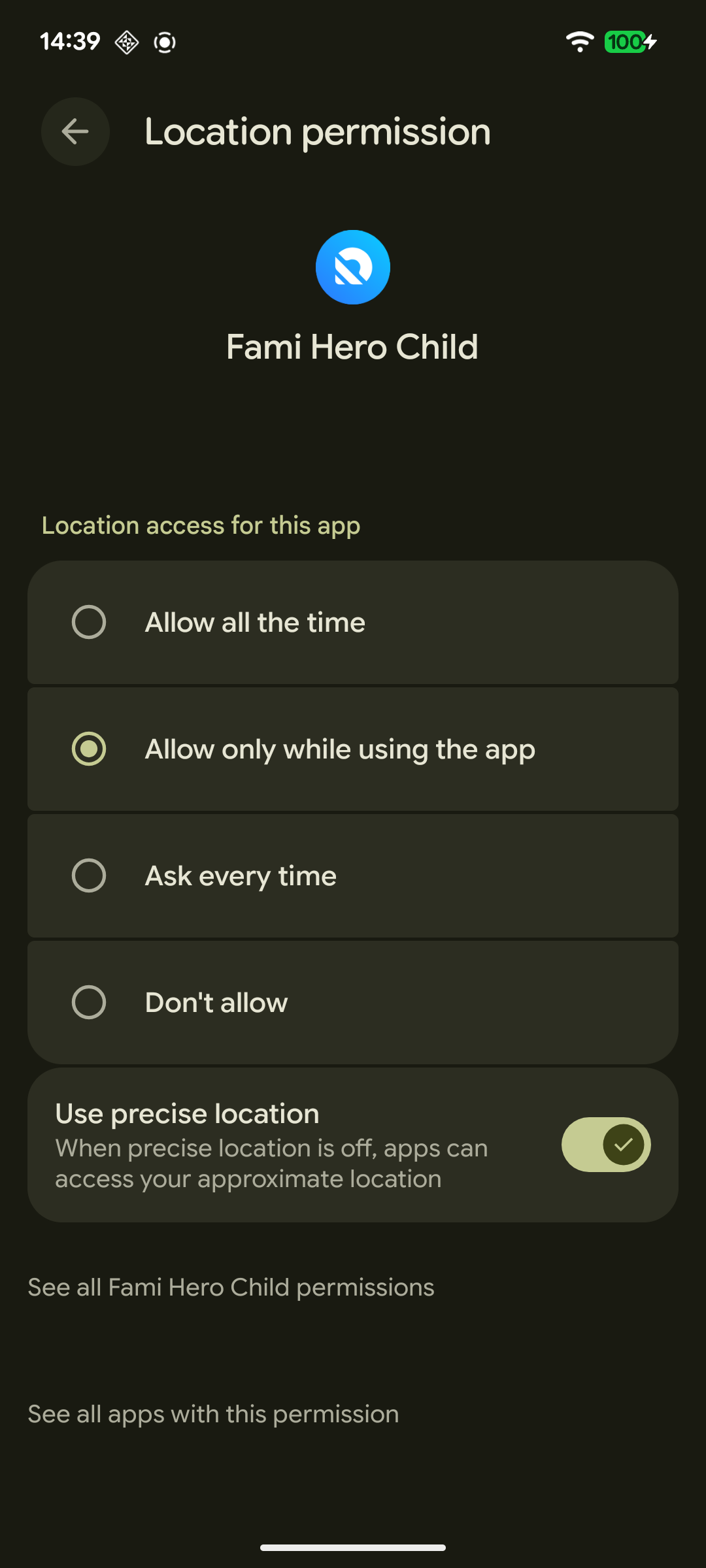
Highlight 1: Hintergrund-Standortberechtigung (Immer zulassen)
Für kontinuierliche GPS-Hintergrundaktualisierungen in Echtzeit und eine zuverlässige Sicherheitsüberwachung erfordert Android die explizite Auswahl von Immer zulassen in den Standorteinstellungen des Systems:
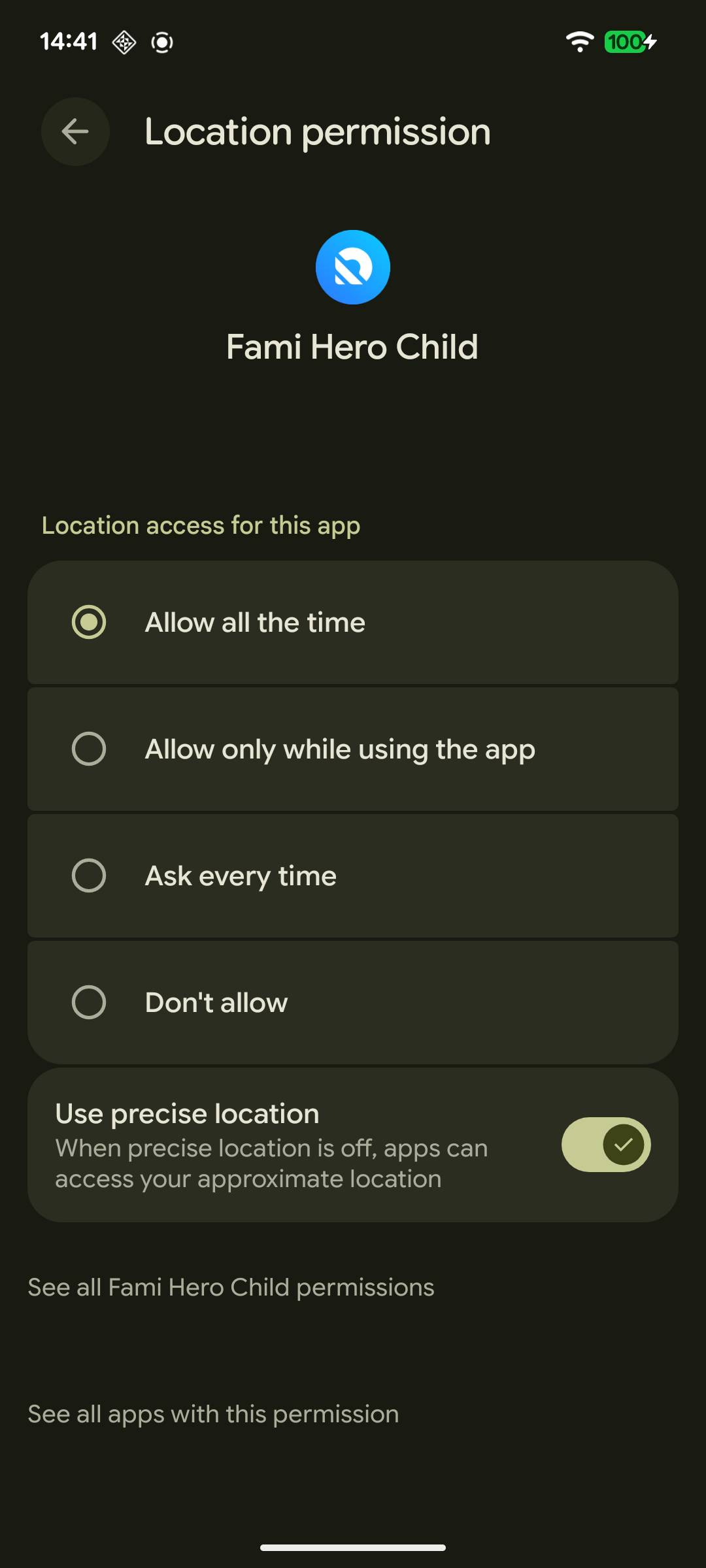
Bildunterschrift: Systemeinstellungsseite für die Standortberechtigung, auf der Fami Hero Child für den Hintergrundzugriff ("Immer zulassen") konfiguriert ist.
Highlight 2: Barrierefreiheit aktivieren (Accessibility)
Da die Barrierefreiheit eine sehr sensible Android-Berechtigung ist, zeigt das System möglicherweise eine standardmäßige Sicherheitswarnung an. Fami Hero verwendet diese Berechtigung ausschließlich dazu, den Zugriff auf die Systemeinstellungen zu sperren und die App vor einer Deinstallation ohne Zustimmung der Eltern zu schützen.
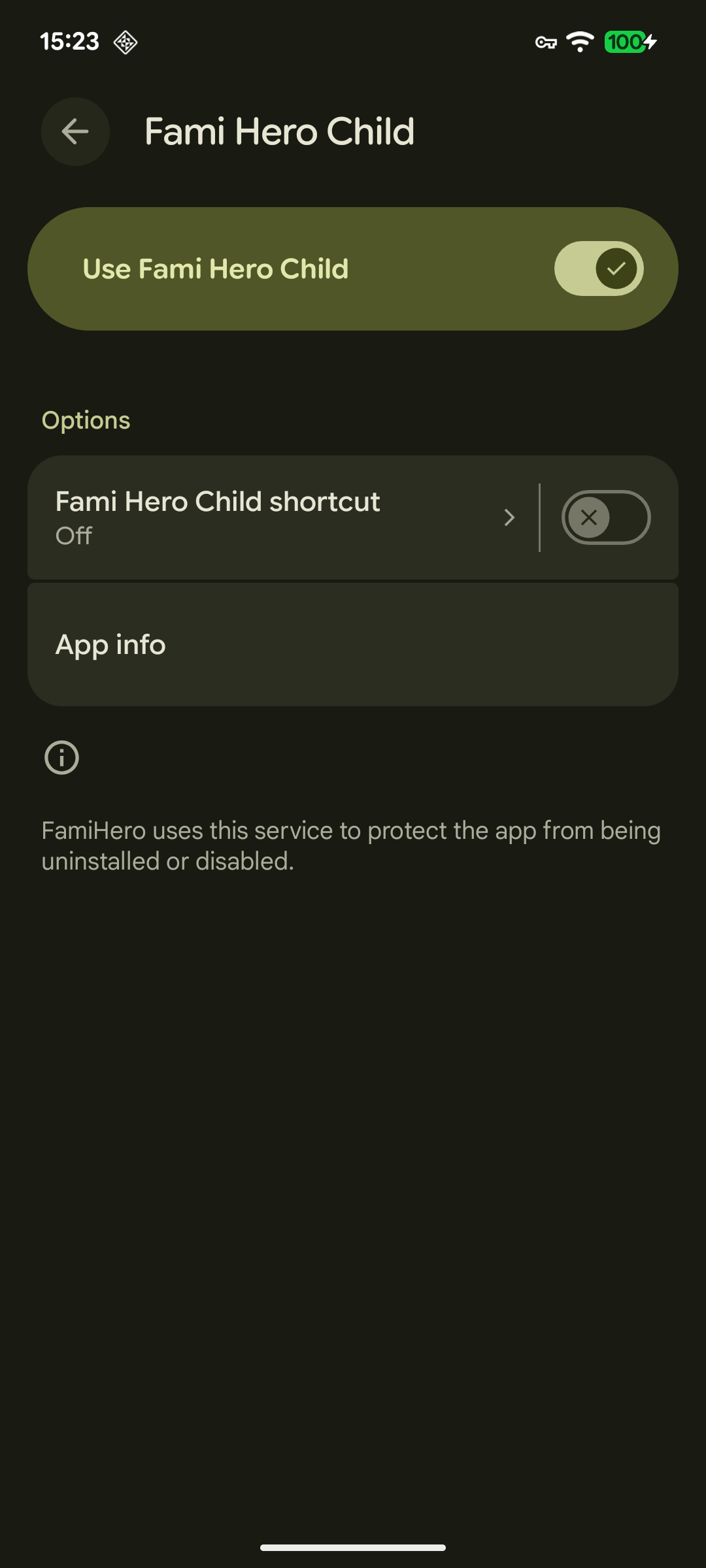
Bildunterschrift: Systemeinstellungen bestätigen, dass der Barrierefreiheitsdienst für Fami Hero Kids erfolgreich aktiviert wurde (Ein).
Highlight 3: VPN-Verbindung einrichten
Um Ihr Kind vor dem Zugriff auf unangemessene Websites zu schützen und benutzerdefinierte Webdomänen remote zu blockieren, verwendet Fami Hero ein sicheres, rein lokales VPN. Wenn Sie dazu aufgefordert werden, müssen Sie Fami Hero erlauben, eine VPN-Verbindung einzurichten.
Es wird kein Internetverkehr über externe Proxyserver geleitet – die gesamte Filterung erfolgt vollständig offline direkt auf dem Gerät des Kindes, um optimale Privatsphäre und Leistung zu gewährleisten.
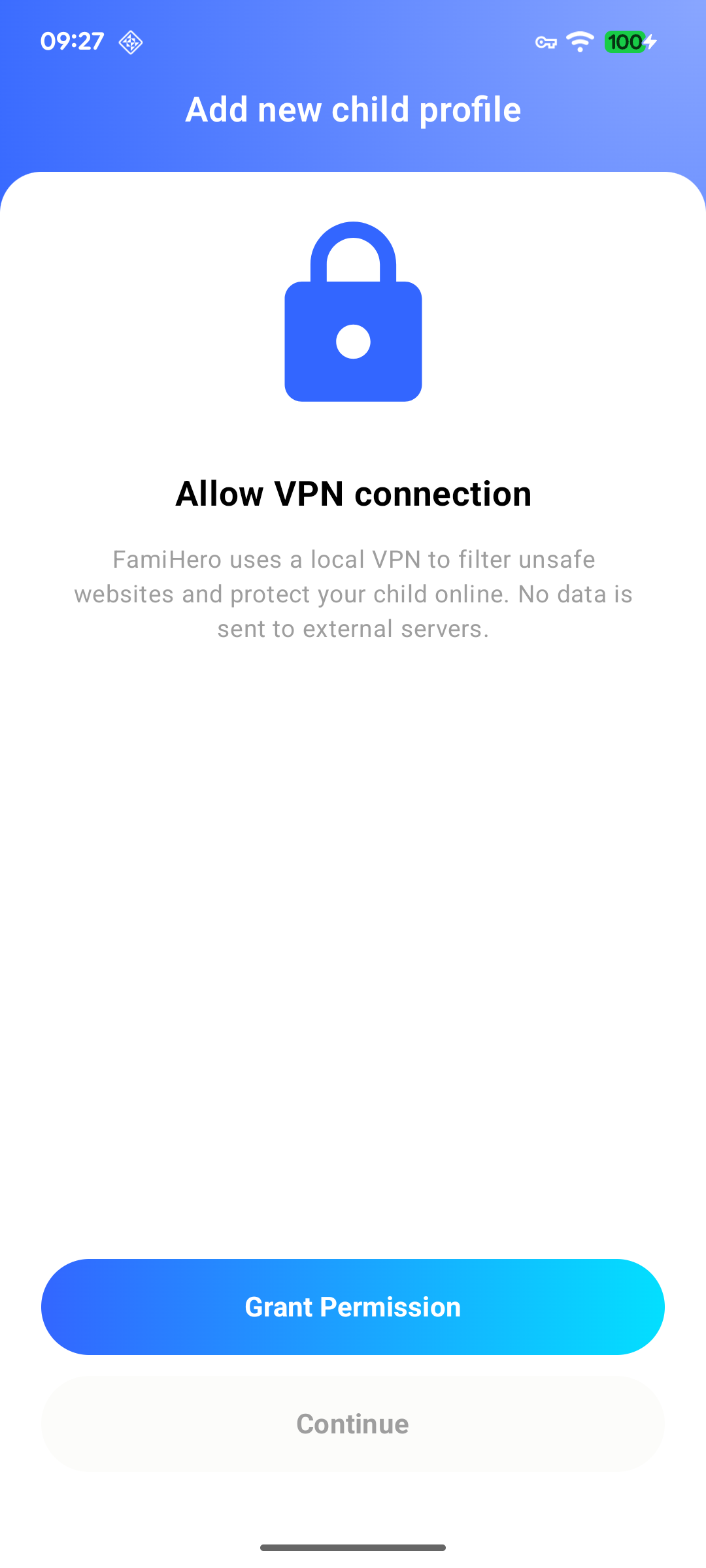
Bildunterschrift: Systemzustimmungsfenster, das Sie auffordert, die lokale Fami Hero VPN-Verbindung zuzulassen, um die DNS-basierte Web-Filterung zu aktivieren.
🍏 Berechtigungen unter iOS
Bei iOS-Geräten (iPhone/iPad) erfolgt die Einrichtung nach den Apple-Standards:
- Standortzugriff: Wählen Sie Immer zulassen (Always Allow), damit Eltern den Standort im Hintergrund verfolgen können.
- Push-Benachrichtigungen: Tippen Sie auf Zulassen (Allow), damit das Kind wichtige Warnungen und Zusatzzeitbestätigungen erhält.
- Screen Time API / MDM-Profil: (Falls konfiguriert) Folgen Sie den Anweisungen, um dem Konfigurationsprofil in den iOS-Einstellungen zu vertrauen.
🔒 Remote-Deinstallationsschutz für Kinder (Remote Child Anti-Uninstall)
Um zu verhindern, dass das Kind die Kindersicherung durch Deinstallation der Fami Hero Kids-App umgeht, enthält die Plattform einen leistungsstarken Deinstallationsschutz. Diese Einstellung wird vollständig remote von den Eltern verwaltet. Das bedeutet, dass Sie keinen physischen Zugriff auf das Gerät des Kindes benötigen, um sie zu aktivieren oder zu deaktivieren.
So funktioniert es:
Wenn der Deinstallationsschutz aktiviert ist, verwendet Fami Hero die Berechtigungen Barrierefreiheit (Accessibility) und Geräteadministrator auf dem Gerät des Kindes, um Deinstallationsversuche oder Einstellungsänderungen zu überwachen. Wenn das Kind versucht, die App zu deinstallieren oder Berechtigungen zu entziehen:
- Die App erkennt den Versuch sofort.
- Sie blockiert die Aktion und erzwingt das Sperren des Bildschirms oder leitet das Kind zurück zum Startbildschirm.
- Die Eltern erhalten sofort eine dringende Push-Benachrichtigung auf ihrem Smartphone.
So schalten Sie den Deinstallationsschutz remote ein/aus:
- Öffnen Sie die Fami Hero Eltern-App und tippen Sie auf den Tab Menü in der unteren Navigationsleiste.
- Suchen Sie die Karte Deinstallationsschutz (Child Anti-Uninstall).
- Stellen Sie den Schalter auf ON (aktiver blauer Zustand), um den Remote-Schutz zu aktivieren, oder auf OFF, um ihn vorübergehend zu deaktivieren (z. B. wenn Sie die App des Kindes aktualisieren oder deinstallieren möchten).
- Die Einstellung wird über einen sicheren Hintergrundbefehl sofort auf dem Gerät des Kindes aktualisiert.
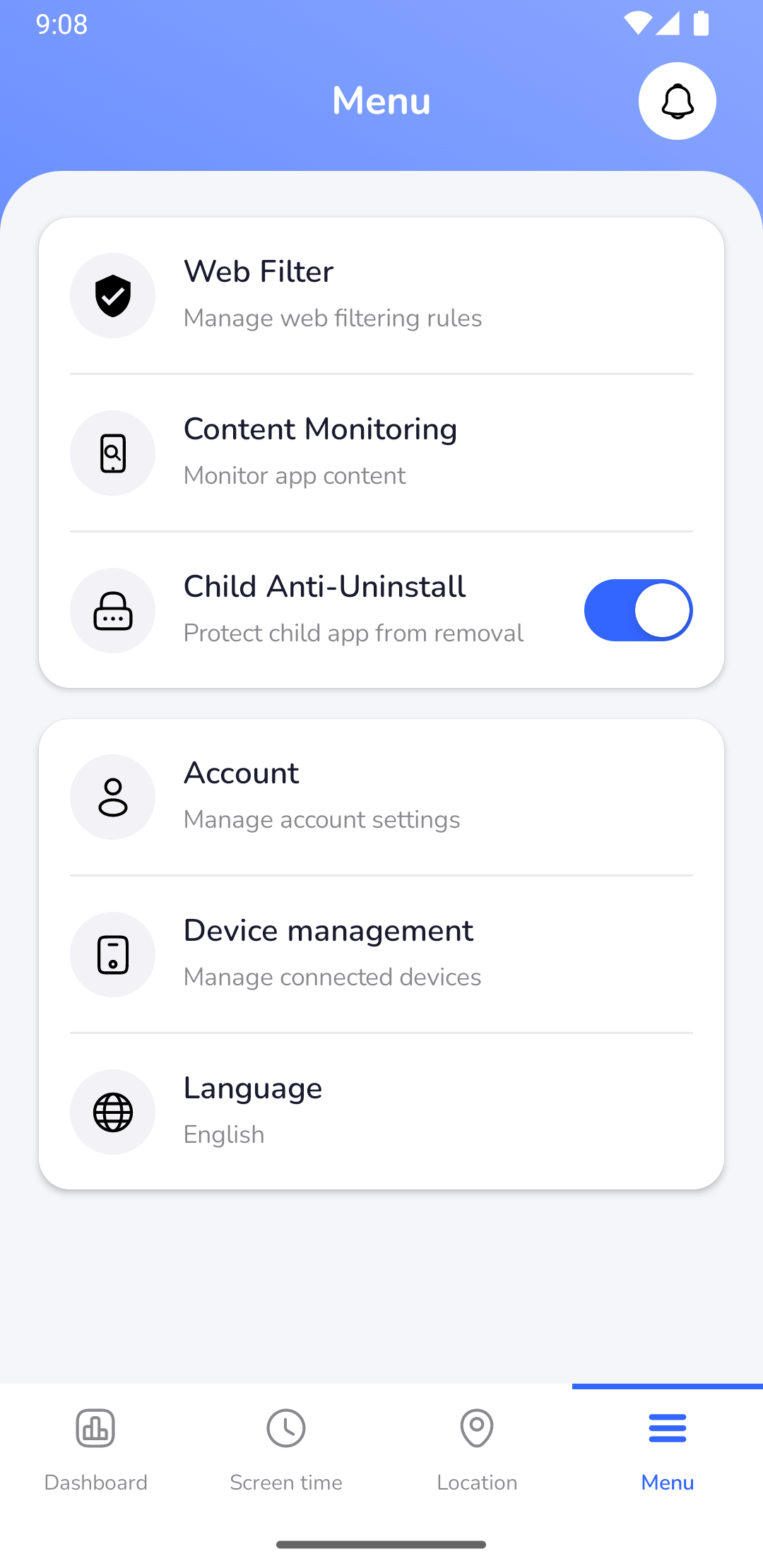
Bildunterschrift: Aktivieren des Remote-Deinstallationsschutzes über den Menü-Tab in der Eltern-App.
🔍 Überprüfung des Status durch die Eltern
Sie müssen das Gerät des Kindes nicht physisch kontrollieren, um den Berechtigungsstatus zu überprüfen:
- Öffnen Sie die Fami Hero Eltern-App auf Ihrem Smartphone.
- Wählen Sie das Profil des Kindes auf der Startseite aus.
- Überprüfen Sie den Überwachungsstatus:
- Aktiv/Gesund: Alle erforderlichen Berechtigungen sind aktiv.
- Aktion erforderlich: Es wird eine Warnung angezeigt (z. B. "Nutzungsdatenzugriff deaktiviert" oder "Barrierefreiheitsdienst deaktiviert").
[!WARNING] Wenn eine Berechtigung vom Kind deaktiviert oder durch ein System-Akkusparprogramm deaktiviert wird, erhält das Elterngerät sofort eine dringende Push-Benachrichtigung. Siehe Fehlerbehebung für Hintergrundprozesse.
⏭️ Nächster Schritt
Die Berechtigungen sind nun eingerichtet. Sie können nun die ersten Schutzregeln konfigurieren. Lesen Sie weiter unter Bildschirmzeit-Steuerung.