Installation & Gerätekopplung
Die Einrichtung von Fami Hero ist ein schneller, strukturierter Prozess. Diese Anleitung beschreibt, wie Sie die Apps auf den Geräten von Eltern und Kindern installieren, diese mithilfe eines sicheren 6-stelligen Kopplungscodes verbinden und den aktiven Status überprüfen.
📋 Überblick über den Kopplungsablauf
Die Verknüpfung von Geräten erfordert physischen Zugriff sowohl auf das Smartphone der Eltern als auch auf das Gerät des Kindes. Der gesamte Vorgang dauert etwa 5 Minuten.
🛠️ Schritt 1: Apps installieren
Für die Eltern (Überwacher)
- Öffnen Sie den iOS App Store oder Google Play Store auf Ihrem Smartphone.
- Suchen Sie nach Fami Hero.
- Laden Sie die App herunter und installieren Sie sie.
- Starten Sie die App und melden Sie sich an, oder tippen Sie auf Registrieren, um ein neues Konto zu erstellen.
Für das Kind (Überwachtes Gerät)
- Öffnen Sie den Google Play Store (Android) oder App Store (iOS) auf dem Gerät Ihres Kindes.
- Suchen Sie nach der App Fami Hero Kids (App für das Kind).
- Laden Sie die App herunter und installieren Sie sie.
- Starten Sie die App. Es wird eine Aufforderung zur Eingabe des Kopplungscodes angezeigt.
🔗 Schritt 2: Kopplungscode generieren (Eltern-Smartphone)
- Starten Sie die Fami Hero Eltern-App und melden Sie sich an.
- Navigieren Sie zum Tab Startseite oder zum Bereich Menü.
- Tippen Sie auf die Schaltfläche Kindergerät hinzufügen.
- Füllen Sie die grundlegenden Profildetails Ihres Kindes aus (Name, Geburtsjahr, Avatar).
- Tippen Sie auf Kopplungscode generieren.
- Die App zeigt einen eindeutigen 6-stelligen Code an (z. B.
483-910).
[!NOTE] Kopplungscodes sind äußerst sicher und verfallen automatisch nach 5 Minuten. Wenn der Timer abläuft, tippen Sie in der Eltern-App auf Code neu generieren.
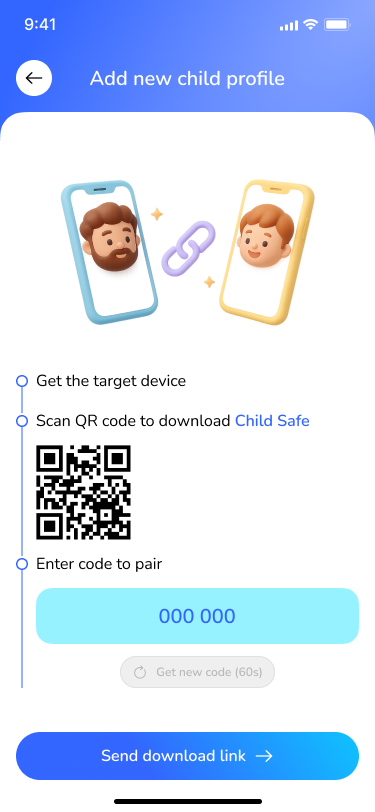 Bildunterschrift: Der Eltern-Bildschirm zeigt den 6-stelligen Kopplungscode mit einem Live-Countdown-Timer.
📲 Schritt 3: Kopplungscode eingeben (Kindergerät)
- Öffnen Sie die App Fami Hero Kids auf dem Gerät des Kindes.
- Tippen Sie auf Mit Eltern koppeln.
- Geben Sie den 6-stelligen Code ein, der auf dem Gerät der Eltern angezeigt wird.
- Tippen Sie auf Verbindung bestätigen.
- Warten Sie einen Moment, bis das System den Vorgang abgeschlossen hat.
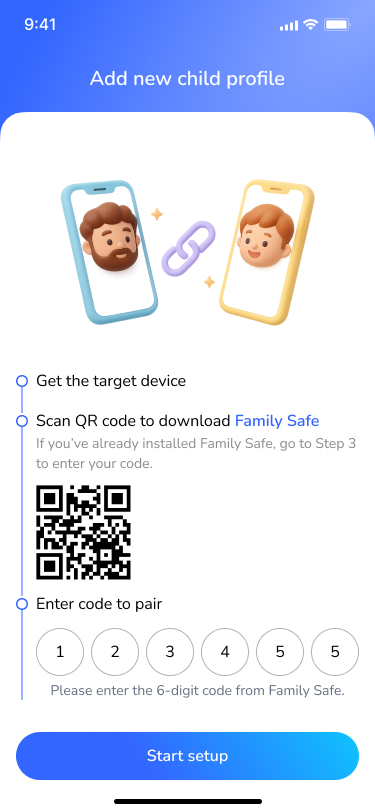 Bildunterschrift: Eingabefeld in der Fami Hero Kids App, in das das Kind den von den Eltern generierten Code eingibt.
✅ Schritt 4: Verifizierung
Sobald die Kopplung abgeschlossen ist, müssen Sie überprüfen, ob beide Geräte eine aktive Verbindung anzeigen.
Verifizierung auf dem Elterngerät:
- Tippen Sie auf den Tab Startseite.
- Sie sollten den Avatar und den Profilnamen Ihres Kindes sehen.
- Das Statussymbol des Geräts zeigt Aktiv oder Online an.
Verifizierung auf dem Kindergerät:
- Die App Fami Hero Kids wechselt automatisch vom Kopplungsbildschirm zur Liste der erforderlichen Betriebssystemberechtigungen.
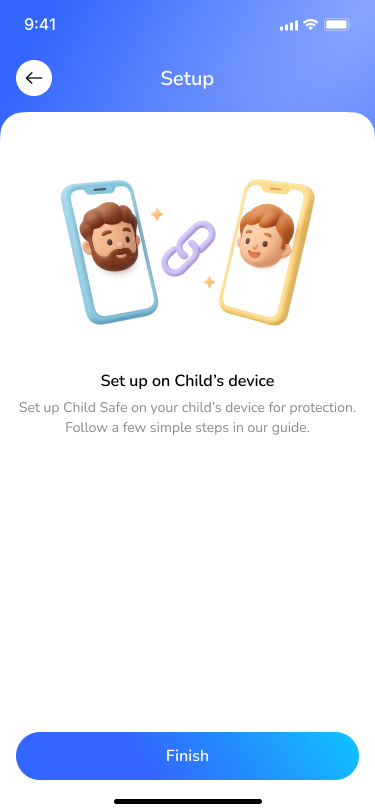
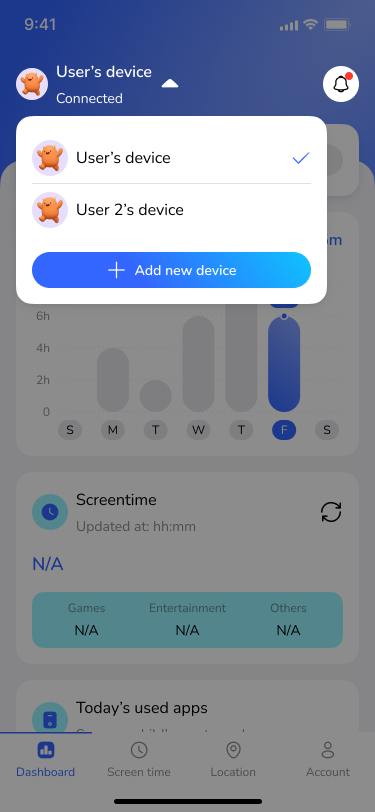
Bildunterschrift: Die Startseite der Eltern zeigt den aktiven Online-Status des neu gekoppelten Kindergeräts.
👥 5. Verwaltung mehrerer Geräte & Kinderprofile
Fami Hero unterstützt die Verwaltung mehrerer Kinderprofile und Geräte über eine einzige Eltern-App.
Geräteverwaltung:
Sie können alle verbundenen Kindergeräte direkt über das Menü anzeigen, koppeln und verwalten:
- Tippen Sie in der Eltern-App auf den Tab Menü.
- Tippen Sie auf Geräteverwaltung (Device management).
- Hier sehen Sie eine Liste aller Kinderprofile (z. B.
FamiChild,Iso) zusammen mit ihrem Kopplungsstatus (z. B. Nicht gekoppelt oder aktiver Status). - Um ein weiteres Kindergerät hinzuzufügen, tippen Sie unten auf die auffällige blaue Schaltfläche + Neues Gerät hinzufügen (+ Add new device) und folgen Sie dem Standardprozess zur Kopplungscode-Generierung.
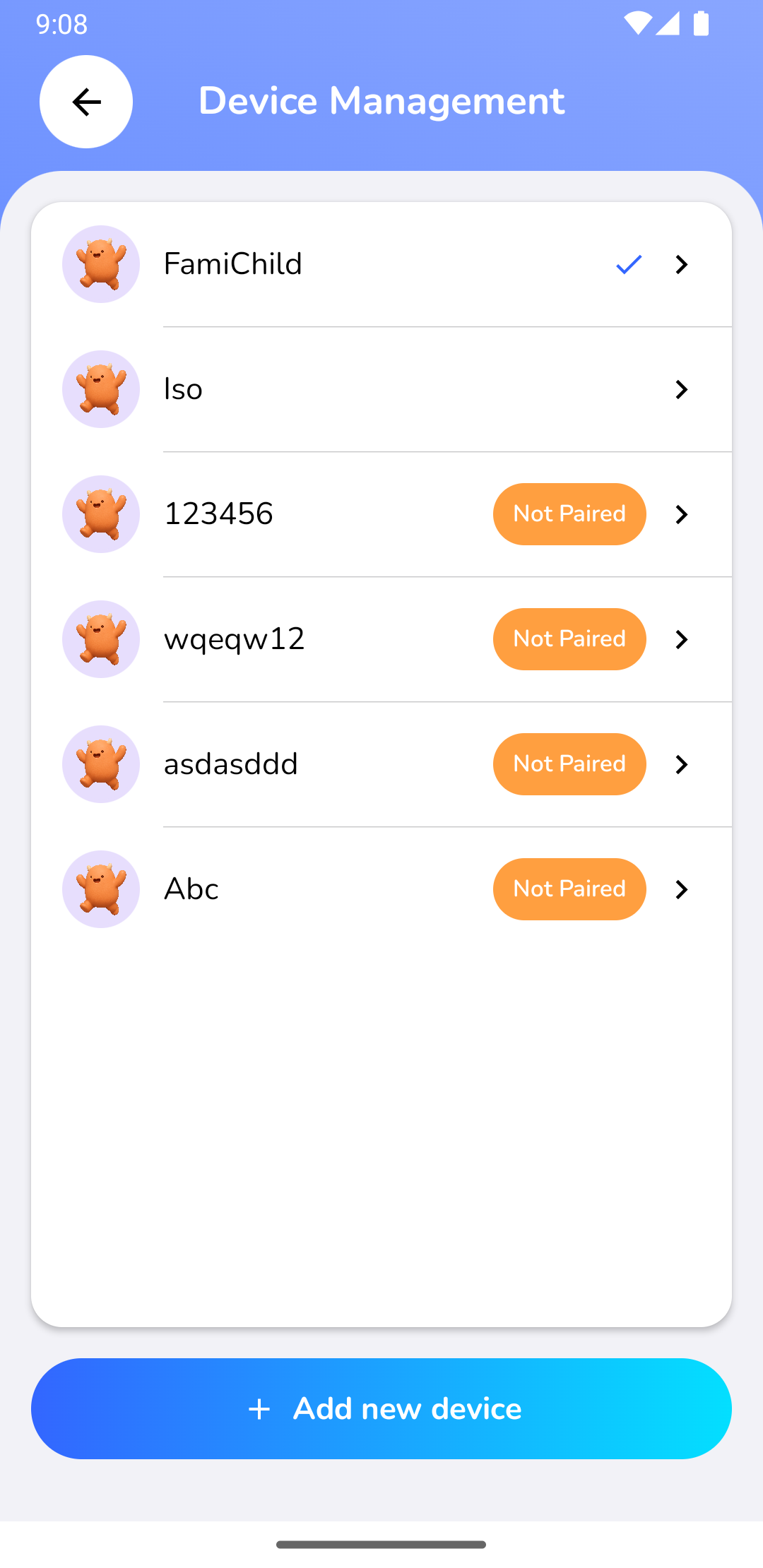
Bildunterschrift: Die Seite zur Geräteverwaltung, auf der Eltern alle verbundenen Kinderprofile sehen und neue Geräte hinzufügen können.
Wechseln zwischen Kinderprofilen:
Sobald mehrere Profile konfiguriert sind:
- Tippen Sie auf den Tab Startseite (Dashboard) oder Bildschirmzeit (Screen time).
- Achten Sie auf die obere Leiste mit dem Namen des aktuellen Kindes.
- Tippen Sie auf den Dropdown-Pfeil neben dem Namen des Kindes, um sofort zwischen verschiedenen Kinderprofilen zu wechseln. Alle Regeln, Limits und Standortverläufe werden sofort für das ausgewählte Kinderprofil aktualisiert.
⏭️ Nächster Schritt
Da die Geräte nun sicher gekoppelt sind, müssen die erforderlichen Betriebssystemberechtigungen auf dem Gerät des Kindes aktiviert werden. Lesen Sie weiter im Leitfaden für Berechtigungen.