Benutzer- & Geräteverwaltung
Fami Hero Administratoren überwachen Benutzerkonten und gekoppelte Kindergeräte, um Supportanfragen zu beantworten, Neuregistrierungen zu prüfen und Systemaktivitäten zu protokollieren. Diese Anleitung beschreibt die Verwaltung der Benutzerdaten und Geräte.
👥 1. Das Benutzerverzeichnis (Eltern)
Route: /users
Das Benutzerverzeichnis listet ausschließlich registrierte Elternkonten (Rolle: parent) auf der Fami Hero-Plattform auf.
Strikte Rollentrennung:
- Nur Eltern: Dieses Dashboard zeigt ausschließlich Elternkonten. Unter keinen Umständen werden Administratorkonten oder Super-Admins in diesem Verzeichnis aufgeführt.
- Keine Beförderung von Konten: Es gibt keine Möglichkeit, ein Elternkonto in ein Administratorkonto umzuwandeln bzw. zu befördern. Administratorrollen sind isoliert und müssen von einem Super-Administrator im Bereich
/admin-accountsneu erstellt werden.
Verzeichnis-Steuerung & Aktionen:
- Suche & Filter: Suchen Sie nach E-Mail-Adresse, vollständigem Namen oder Telefonnummer. Filtern Sie Konten nach Status (
Aktiv,Gesperrt) und Abonnement-Typ (Basic,Premium,Enterprise). - Konto-Detailansicht:
- Klicken Sie auf eine Zeile, um detaillierte Informationen wie Registrierungsdatum, gekoppelte Kindergeräte, Abonnement-Status, aktive Gerätelisten und kürzlich aktive Sitzungen anzuzeigen.
- Status umschalten (Aktivieren/Sperren): Administratoren können Elternkonten unter Angabe eines zwingenden administrativen Grundes sperren. Gesperrten Konten (Suspended) wird der Zugriff auf die mobile Eltern-App sofort entzogen, und ihre aktiven Sitzungen werden beendet.
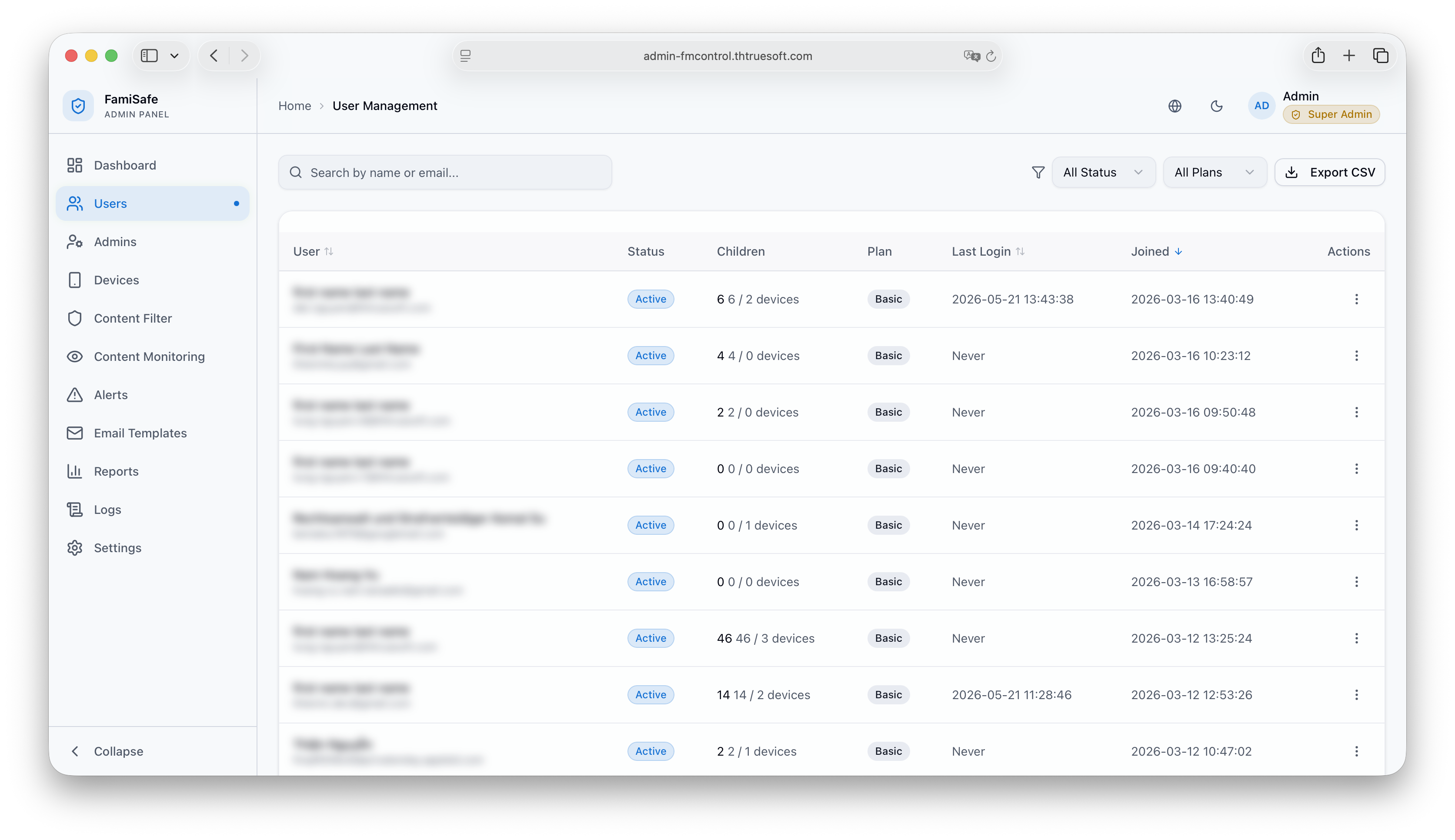 Bildunterschrift: Verzeichnisansicht im Admin-Portal für Suche, Filter und Kontoverwaltung.
🛡️ 2. Verwaltung von Administratorkonten
Route: /admin-accounts
Der Bereich Admin-Konten listet alle Administratorkonten auf der Fami Hero-Plattform auf und verwaltet diese. Der Zugriff auf dieses Modul ist ausschließlich Super-Administratoren vorbehalten.
Administrator-Steuerung:
- Admin-Konto erstellen: Super-Admins können neue Administratorkonten registrieren, indem sie einen eindeutigen Benutzernamen, eine E-Mail-Adresse, den vollständigen Namen und ein sicheres Anfangspasswort angeben.
- Status-Umschalter: Deaktivieren oder aktivieren Sie vorübergehend Admin-Konten, um den Zugriff auf das Dashboard zu steuern.
- Passwort zurücksetzen: Generieren Sie ein sicheres temporäres Passwort für Administratoren, die den Zugriff auf ihr Konto verloren haben.
- Integration des Audit-Trails: Alle Änderungen am Lebenszyklus von Admins (wie das Erstellen eines Admins oder das Deaktivieren) werden dauerhaft im Aktivitätsprotokoll des Systems aufgezeichnet.
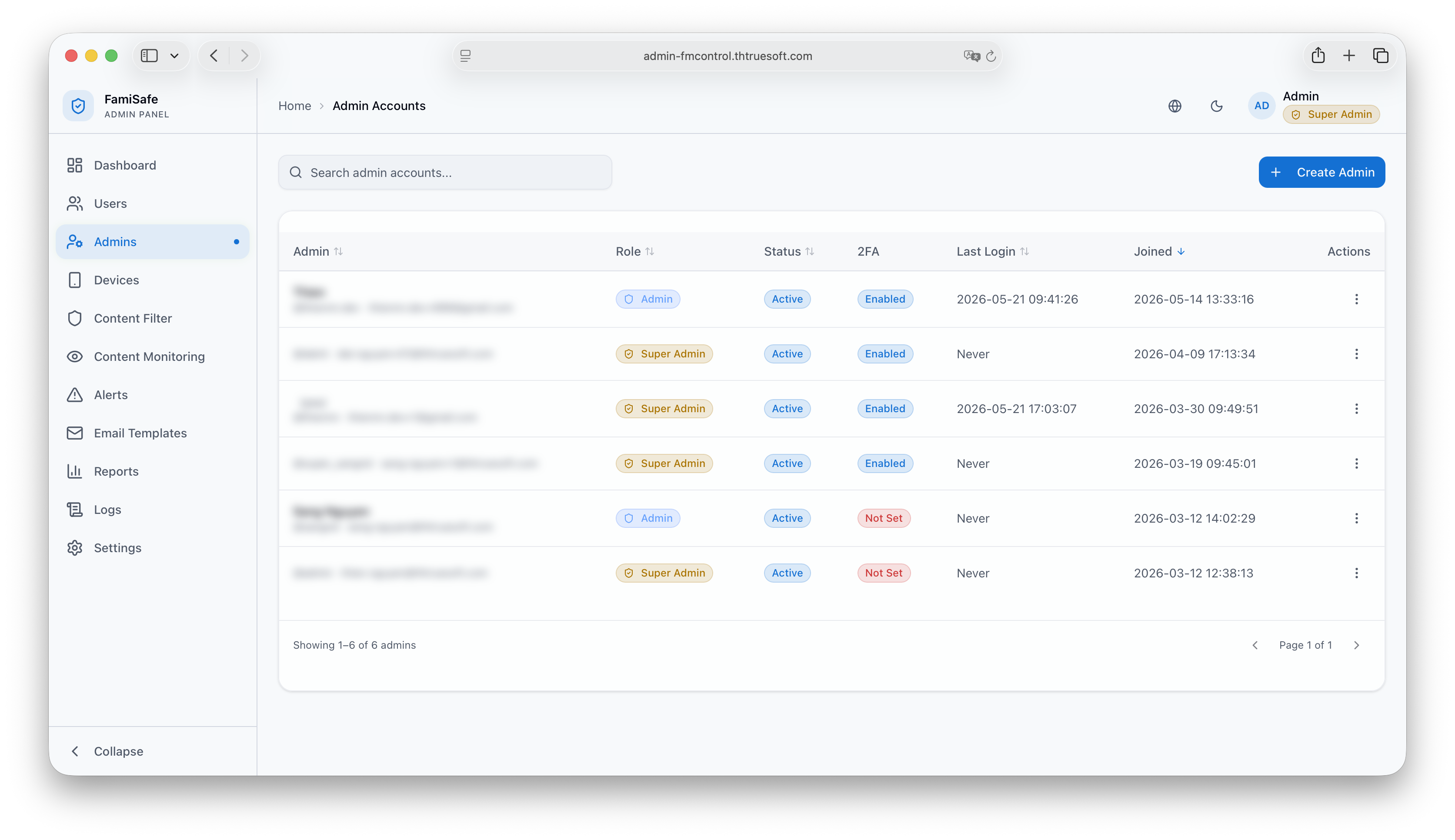 Bildunterschrift: Verzeichnisansicht zur Verwaltung von Administratorkonten, die nur für Super-Administratoren zugänglich ist.
📱 3. Das Geräteverzeichnis
Route: /devices
Das Geräteverzeichnis erfasst jedes Kindergerät, das mit Fami Hero verbunden ist.
Überwachte Geräte-Attribute:
- Marke & Modell: (z. B. Samsung Galaxy S22, Xiaomi Redmi Note 10).
- Betriebssystem-Version: (z. B. Android 13, iOS 16.5).
- Batteriestand: Zuletzt gemeldeter Batteriestand des Geräts.
- Verbindungsstatus:
- Online: Das Gerät hat in den letzten 5 Minuten GPS-Daten oder ein Ping-Signal an den Server gesendet.
- Inaktiv: Seit mehr als 2 Stunden keine Rückmeldung vom Gerät. Dieser Status weist meist darauf hin, dass der Akku leer ist oder der Hintergrunddienst vom Betriebssystem beendet wurde.
Geräte-Steuerung & Aktionen:
- Details anzeigen: Öffnet ein Modal mit dem Namen des Kinderprofils, dem Alter, den Betriebssystemspezifikationen und detaillierten Telemetrie-Verbindungsprotokollen.
- Test-Push-Benachrichtigung senden: Sendet eine Testbenachrichtigung direkt an das Kindergerät, um Fehler bei der Firebase Cloud Messaging (FCM)-Hintergrundkonnektivität zu beheben.
- Gerät entkoppeln: Trennt die Verbindung zwischen Eltern- und Kindergerät aus der Ferne unter Angabe eines administrativen Grundes.
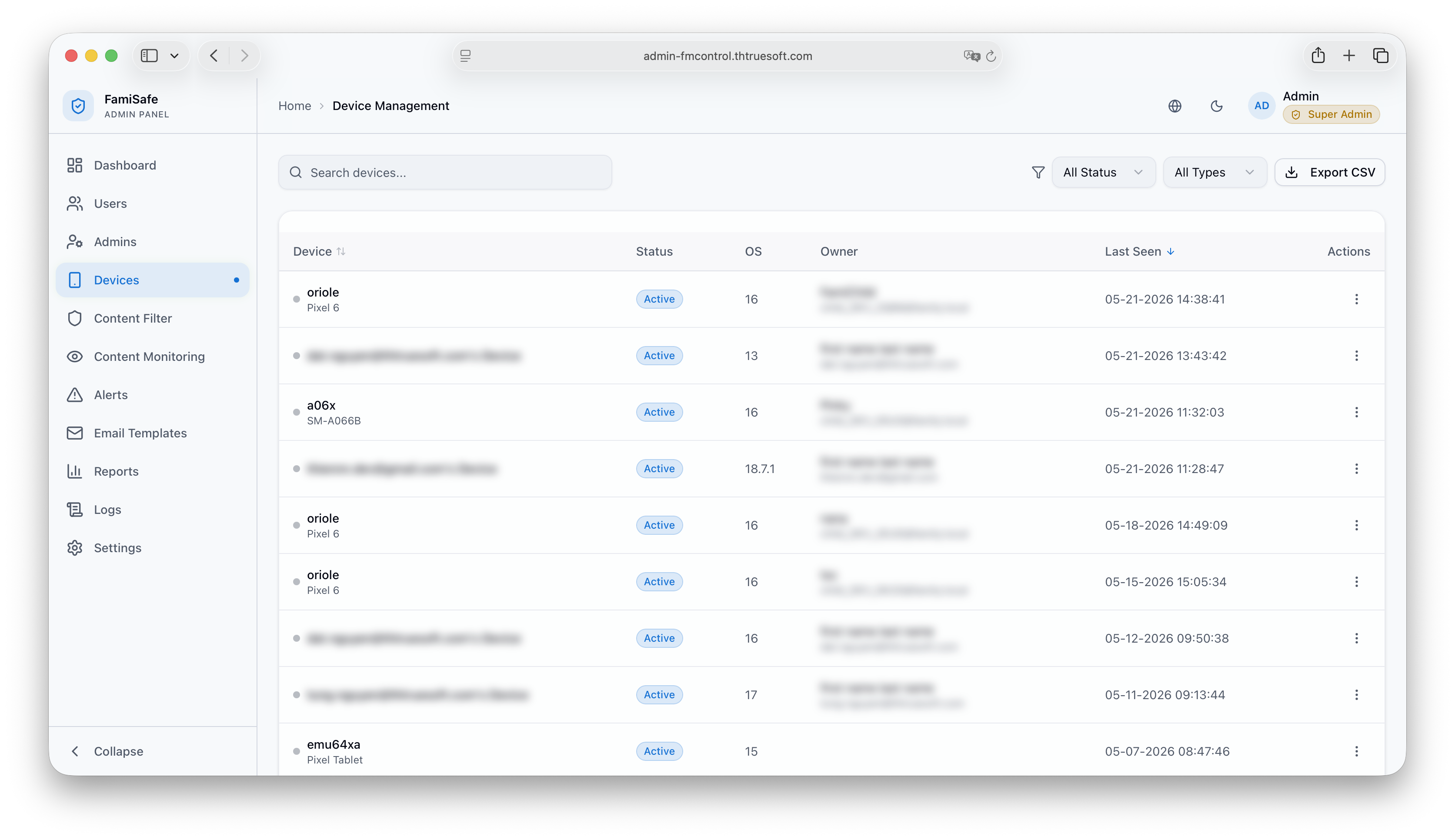 Bildunterschrift: Tabelle aller Kindergeräte mit Betriebssystem, Akkustand und Verbindungsstatus.
⏭️ Nächster Schritt
Administratoren können auch Systemprotokolle einsehen, Anmeldeanforderungen zurückverfolgen und Admin-Aktivitätsaufzeichnungen überprüfen. Lesen Sie weiter unter Aktivitätsprotokolle & Sicherheit.