Systemeinstellungen & E-Mail-Vorlagen
Das Fami Hero Admin-Portal ermöglicht es Systemadministratoren, globale Parameter, Sicherheitsrichtlinien, Versionen der mobilen Apps und Kommunikationsvorlagen in den Modulen „Einstellungen“ und „E-Mail-Vorlagen“ zu verwalten. Diese Konfigurationen steuern das Kernverhalten, die Sicherheitsgrenzen und die Benachrichtigungskanäle auf der gesamten Plattform.
⚙️ 1. Globale Systemeinstellungen
Route: /settings
Das Konfigurationspanel stellt aktive Laufzeitattribute und Grenzwerte bereit, die sowohl vom Backend als auch von den mobilen Anwendungen verwendet werden.
📱 1.1. App-Konfiguration
- Maximale Anzahl an Kindern pro Konto: Die maximale Anzahl an Kinderprofilen, die ein einzelnes Elternkonto registrieren darf.
- Datenaufbewahrung (Tage): Die Dauer (in Tagen), für die historische Aktivitätsprotokolle, der Standortverlauf und Sicherheitsereignisse in der Datenbank gespeichert werden, bevor sie automatisch gelöscht werden.
- Maximale Anzahl an Sicherheitszonen pro Kind: Das Limit für die Anzahl der konfigurierbaren geofenced Sicherheits- bzw. Sperrbereiche pro Kinderprofil.
⏳ 1.2. Limits für die Bildschirmzeit
- Standardgrenzwerte nach Altersgruppen: Legen Sie das standardmäßige tägliche Bildschirmzeit-Budget (in Minuten/Tag) fest, das Kindern basierend auf ihrer Altersgruppe zugewiesen wird:
- Alter 3-6 (z. B. 60 Minuten)
- Alter 7-12 (z. B. 120 Minuten)
- Alter 13-17 (z. B. 180 Minuten)
🛡️ 1.3. Standard-Inhaltsfilter
- Aktivierte Kategorien für neue Konten: Wählen Sie aus, welche Webfilter-Kategorien automatisch blockiert werden, wenn ein neues Kinderprofil erstellt wird. Diese Standardkategorien umfassen:
Adult(Erwachseneninhalt),Violence(Gewalt),Gambling(Glücksspiel),Drugs(Drogen),Malware(Schadsoftware),PhishingundHate Speech(Hassrede).
🔒 1.4. Admin-Sicherheit
- Zwei-Faktor-Authentifizierung (2FA): Durchsetzungsstatus für alle Administratorkonten, um einen hochsicheren Zugriff zu gewährleisten.
- Sitzungs-Timeout: Die Inaktivitätsdauer (in Minuten), nach der eine inaktive Administrator-Sitzung automatisch abgemeldet wird.
📲 1.5. App-Versionsverwaltung
Verwalten Sie obligatorische Updates und den Versionszugriff für die mobilen iOS- und Android-Apps:
- Neueste Version: Die aktuelle offizielle Release-Version der mobilen App (z. B.
1.0.0). - Erforderliche Mindestversion: Die älteste Version der mobilen App, die sich noch mit der Plattform verbinden darf.
- Umschalter für Zwangs-Update: Wenn diese Option aktiviert ist, werden alle Benutzer blockiert, die eine Version unterhalb der Erforderlichen Mindestversion ausführen, und sie werden zum App Store weitergeleitet, um ein Update durchzuführen.
🌐 1.6. App-Informationen
Verwalten Sie öffentliche Verweise und Kontaktinformationen, die auf dem Info-Bildschirm der mobilen App angezeigt werden:
- Datenschutzerklärung-URL
- Nutzungsbedingungen-URL
- FAQ- / Hilfe-URL
- Support-E-Mail & Support-Telefon
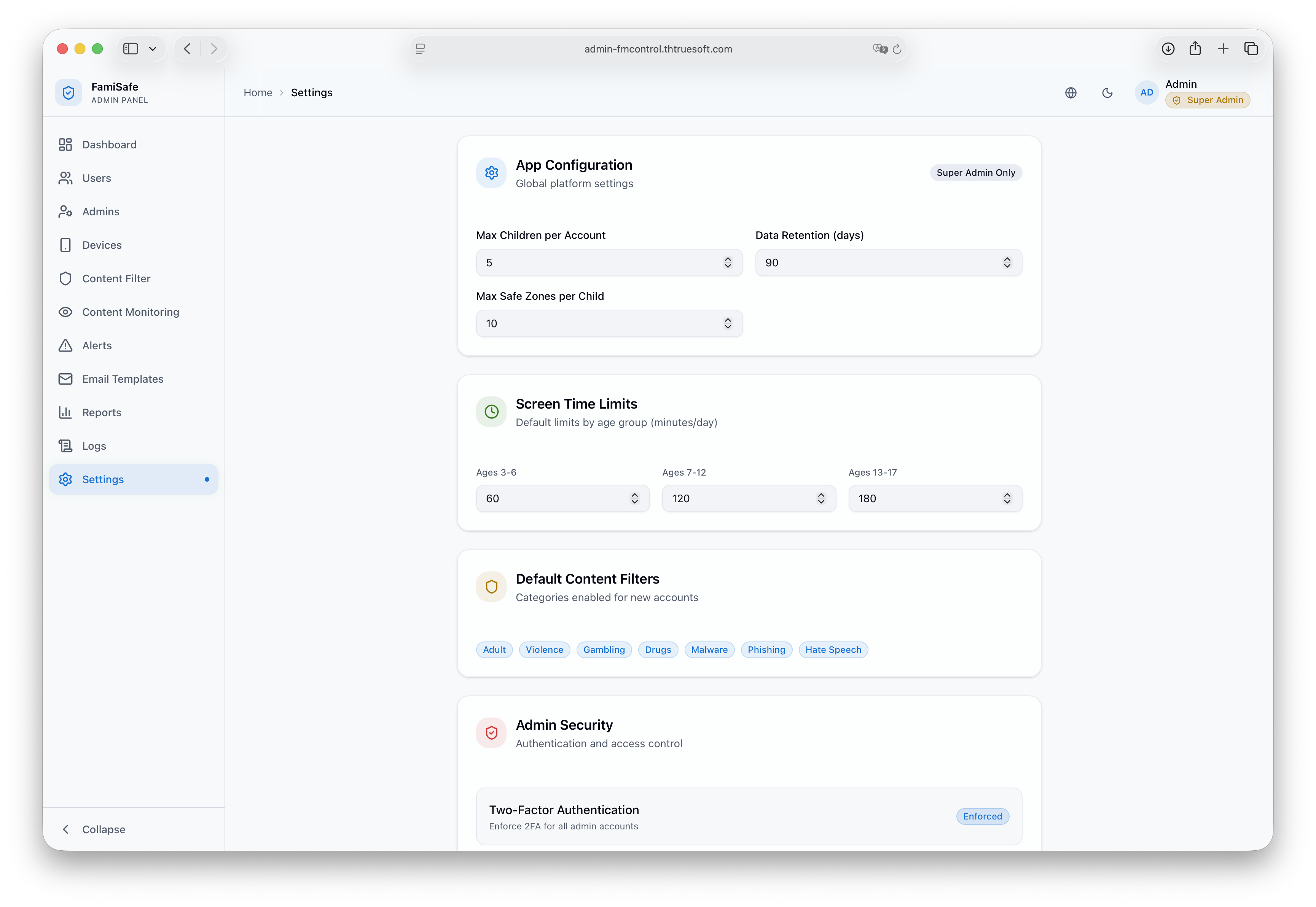 Bildunterschrift: Die Ansicht der globalen Systemeinstellungen mit App-Konfiguration, Limits für die Bildschirmzeit, Standard-Inhaltsfiltern, Admin-Sicherheit, App-Versionsverwaltung und App-Informationen.
✉️ 2. E-Mail-Vorlagen
Route: /email-templates
Fami Hero-Administratoren können den Inhalt, die Formatierung und den Status der automatischen System-E-Mail-Kommunikation an die Eltern anpassen.
✉️ Unterstützte E-Mail-Vorlagen
Bearbeiten Sie lokalisierte HTML- und Nur-Text-E-Mail-Layouts für:
- Willkommens-E-Mail für Eltern (Parent Welcome Email): Wird nach der Registrierung der Eltern gesendet und enthält Onboarding-Informationen sowie Tipps für den Schnellstart.
- Wöchentlicher Aktivitätsbericht (Weekly Engagement Report): Eine wöchentliche Zusammenfassung der Nutzungsdaten, die an die Eltern mit den Statistiken ihres Kindes gesendet wird.
- Passwortzurücksetzungs-Anforderung (Password Reset Request): Standardvorlage mit dem sicheren Wiederherstellungslink zum Zurücksetzen eines vergessenen Passworts für ein Elternkonto.
- E-Mail-Änderungsverifizierung (Email Change Verification): Bestätigungs-E-Mail mit dem 6-stelligen OTP-Verifizierungscode zum Nachweis der Inhaberschaft bei einer E-Mail-Adressänderung eines Elternteils.
⚙️ Vorlagen-Funktionen
- Status-Umschalter: Deaktivieren oder aktivieren Sie vorübergehend den Versand einer bestimmten E-Mail-Vorlage, indem Sie deren aktiven Status umschalten.
- Unterstützung für duales Format: Passen Sie sowohl das HTML-Format (für Rich-Mail-Clients) als auch das Nur-Text-Format (als Standard-Fallback) an.
- Dynamische Platzhalter: Verwenden Sie dynamische Parameter (z. B.
{{parent_name}},{{child_name}},{{device_name}}), um jede E-Mail automatisch zu personalisieren. - Live-HTML-Vorschau: Zeigen Sie eine in Echtzeit gerenderte Vorschau der angepassten HTML-Vorlage an, bevor Sie die Änderungen speichern.
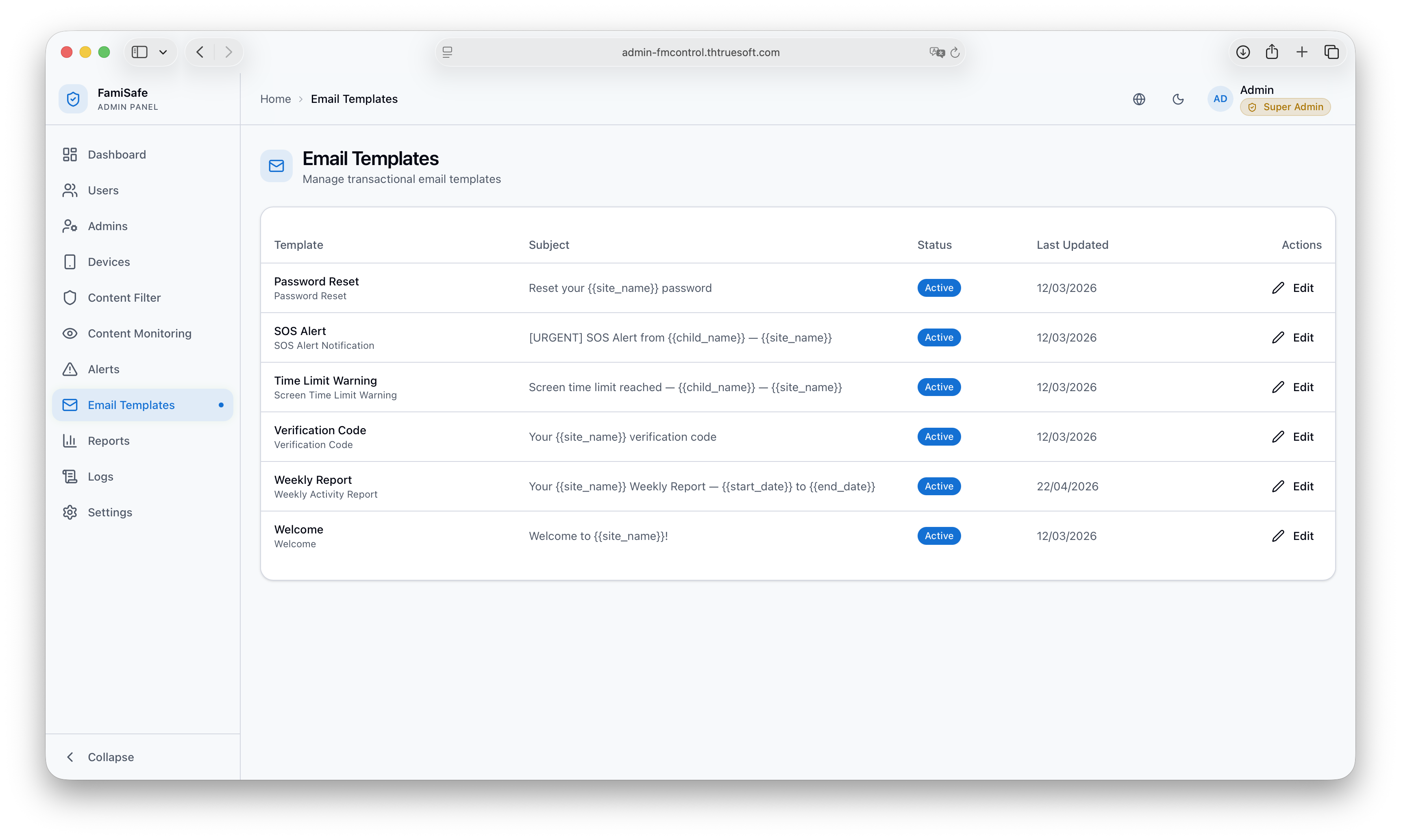
Bildunterschrift: Die Konfigurationsansicht für E-Mail-Vorlagen mit Optionen für die Willkommens-E-Mail für Eltern, den wöchentlichen Aktivitätsbericht, die Passwortzurücksetzungs-Anforderung und die E-Mail-Änderungsverifizierung.
⏭️ Nächster Schritt
Wenn Benutzer auf Fehler, Verbindungsabbrüche oder Akku-Schlaf-Abschaltungen stoßen, lesen Sie die Richtlinien zur Selbsthilfe. Weiter zu Hilfe & Fehlerbehebung.